|
VOOZH | about |
|
VOOZH | about |
Flask is an API of Python that allows us to build up web applications. It was developed by Armin Ronacher. Flask’s framework is more explicit than Django’s framework and is also easier to learn because it has less base code to implement a simple web-Application. A Web-Application Framework or Web Framework is the collection of modules and libraries that helps the developer to write applications without writing the low-level codes such as protocols, thread management, etc. Flask is based on WSGI(Web Server Gateway Interface) toolkit and Jinja2 template engine. The following article will demonstrate how to use Flask for the backend while developing an Android Application.
Step1: Installing Flask
Open the terminal and enter the following command to install the flask
pip install flask
Step 2: Add OkHttp Dependencies to the build.gradle file
OkHttp is a library developed by Square for sending and receiving HTTP-based network requests. For making HTTP requests in the Android Application we make use of OkHttp. This library is used to make both Synchronous and Asynchronous calls. If a network call is synchronous, the code will wait till we get a response from the server we are trying to communicate with. This may give rise to latency or performance lag. If a network call is asynchronous, the execution won't wait till the server responds, the application will be running, and if the server responds a callback will be executed.
Android Dependencies
Add the following dependencies to the build.gradle file in Android Studio
implementation("com.squareup.okhttp3:okhttp:4.9.0")
Step 3: Working with the AndroidManifest.XML file
Add the following line above <application> tag
<uses-permission android:name="android.permission.INTERNET"/>
Add the following line inside the <application> tag
android:usesCleartextTraffic="true">
Step 4: Python Script
Running The Python Script
run the python script and the server will be hosted.
Step 5: Working with the activity_main.xml file
Step 6: Working with the MainActivity.java file
Go to the MainActivity.java file and refer to the following code. Firstly, we need an OkHttp Client to make a request
OkHttpClient okhttpclient = new OkHttpClient();
Next, create a request with the URL of the server. In our case, it is "http://192.168.0.113:5000/". Notice '/' at the end of URL, we are sending a request for the homepage.
Request request = new Request.Builder().url("http://192.168.0.113:5000/").build();
Now, make a call with the above-made request. The complete code is given below. onFailure() will be called if the server is down or unreachable, so we display a text in TextView saying 'server down'. onResponse() will be called if the request is made successfully. We can access the response with the Response parameter we receive in onResponse()
// to access the response we get from the server
response.body().string;
Below is the code for the MainActivity.java file. Comments are added inside the code to understand the code in more detail.
Note:
- Make sure the Android Application runs on a device that is connected to the same network as the system which hosted the server. (if the flask server is running on a machine that is connected to 'ABC' WIFI, we need to connect our android device to the same 'ABC' network)
- If the Application is failing to connect to the server, make sure your firewall allows connections on port 5000. If not, create an inbound rule in firewall advanced settings.
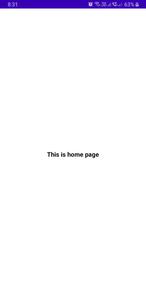
Output:
Step 7: Checking Requests Made in Python Editor
If a request is made, we can see the IP address of the device making the request, the time at which the request was made, and the request type(in our case the request type is GET).
We can use okhttp client to send data over the server. Add the following line to the import statements
from flask import request
We need to set the method of a route as POST. Let's add a method and associate a route to it. The method prints the text we entered in the android application to the console in pycharm. Add the following lines after the showHomePage() method.
@app.route("/debug", methods=["POST"])
def debug():
 text = request.form["sample"]
 print(text)
 return "received"
The complete script is given below
Create a DummyActivity.java in Android Studio. This activity will be started once we get a response from the server from the showHomePage() method. Add the following lines in onResponse() callback in MainActivity.java.
Intent intent = new Intent(MainActivity.this, DummyActivity.class);
startActivity(intent);
finish();
Step 1: Working with the activity_dummy.xml file
Step 2: Working with the DummyActivity.java file
Below is the code for the DummyActivity.java file. Comments are added inside the code to understand the code in more detail.
Output:
Checking Flask Console
Here we can see the android application made a POST request. we can even see the data we send over the server