|
VOOZH | about |
|
VOOZH | about |
There are many android applications present in the market which are available to play songs on mobile phones. The famous one of all these music players is Spotify. In this article, we will be building a Spotify clone application using Spotify Web APIs.
To create a new project in Android Studio please refer to How to Create/Start a New Project in Android Studio.
Navigate to Gradle Scripts > build.gradle.kts (Module :app) file and add the below dependency to it in the dependencies section.
dependencies {
 ...
 implementation ("com.android.volley:volley:1.2.1")
 implementation ("com.github.bumptech.glide:glide:4.16.0")
}
After adding the above dependency simply sync your project to install it.
Navigate to app > AndroidManifest.xml file and add below internet permissions to it.
<uses-permission android:name="android.permission.INTERNET" />We will be using these 2 parameters in our MainActivity file in our project in Step 10.
Navigate to app > res > values > colors.xml file and add the below colors to it. Below is the code for the colors.xml file.
colors.xml:
Navigate to app > res > drawables, right click on the folder and choose New > Drawable Resource File and create two such files as play.xml and search.xml. Then, add the following code to both of the files respectively.
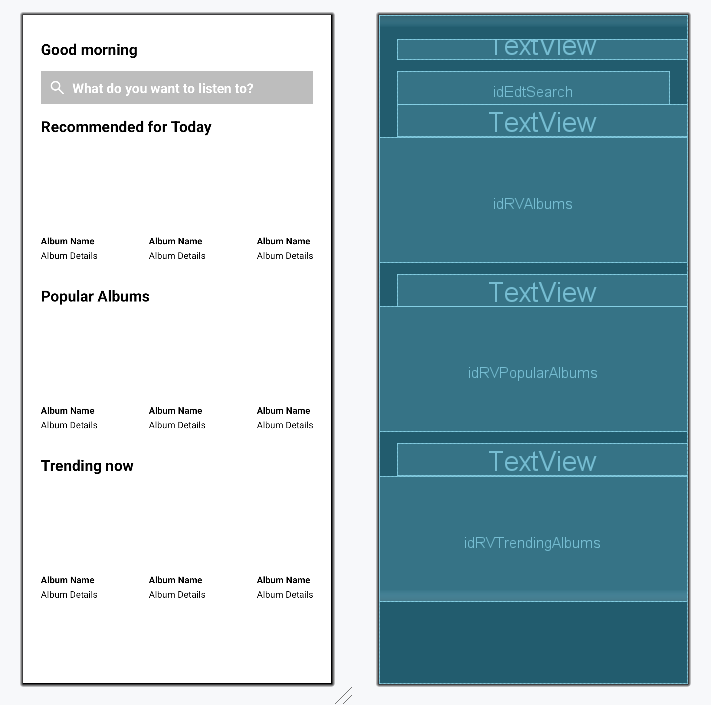
Navigate to app > res > layout > activity_main.xml and add the following lines of code. Then, create a layout, album_rv_item.xml and add the below code.
Design UI:
Create a Java/Kotlin data class file AlbumModel and add the following code
Create a new Java/Kotlin file AlbumAdapter and add the following code
Navigate to app > java > {package-name} > MainActivity.kt/.java and add the following code. Here we will be writing the code for the spotify home page.
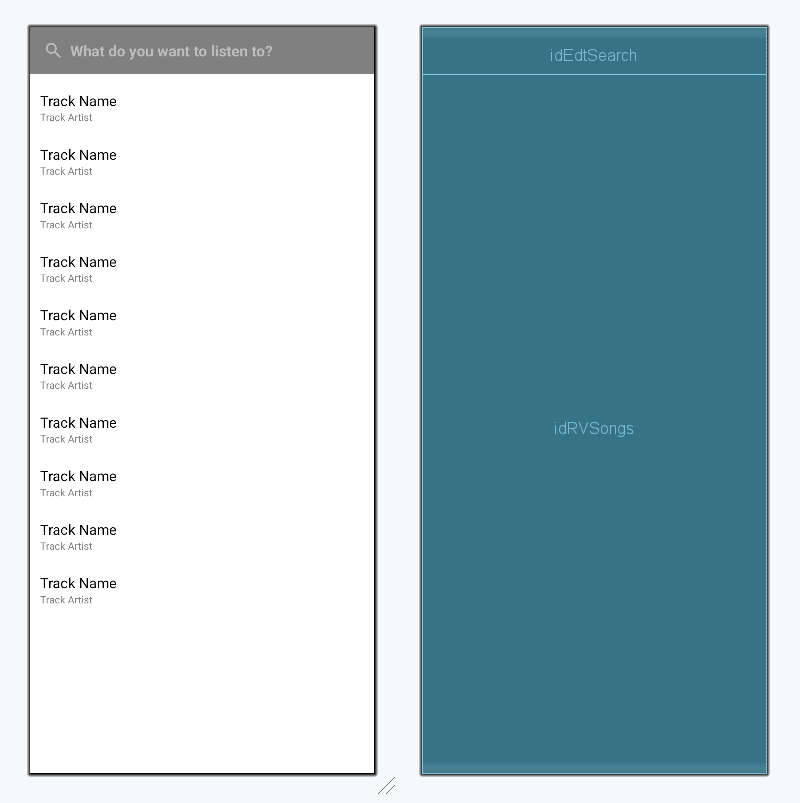
Create a new activity with the name SearchActivity. Now, navigate to app > res > layout > activity_search.xml and add the following code. Then, create a layout track_rv_item.xml and add the following code respectively.
Design UI:
Create a Java/Kotlin data class file TrackModel and add the following code
Create a Java/Kotlin file TrackAdapter and add the following code.
Navigate to SearchActivity and add the following code
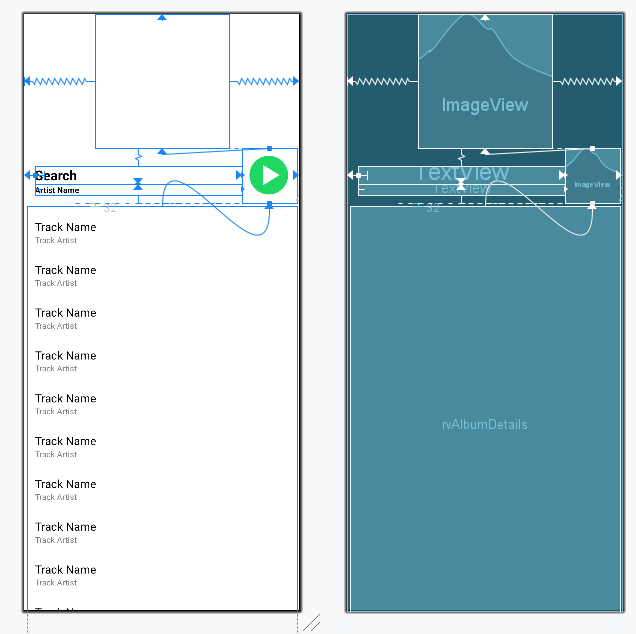
Create a new activity with the name AlbumDetailActivity. Then, navigate to app > res > layout > activity_album_detail.xml and add the following code
activity_album_detail.xml:
Design UI:
Navigate to AlbumDetailActivity and add the following code
Refer to the following github repo to get the entire code: Spotify-Clone-in-Android
Output: