|
VOOZH | about |
|
VOOZH | about |
As we know if some apps are having maintenance or any kind of issues then after opening the app then the app didn't open and it just gives that popup only. This feature is provided by Firebase remote config we can trigger any activity if the user opens the app. To know more about Firebase remote config check this out: How to Use Remote Config Console in Firebase. A sample video is given below to get an idea about what we are going to do in this article.
Step 1: Create a New Project in Android Studio
To create a new project in Android Studio please refer to How to Create/Start a New Project in Android Studio. Note that select Java as the programming language.
Step 2: Connect Your project to Firebase first create a Firebase project
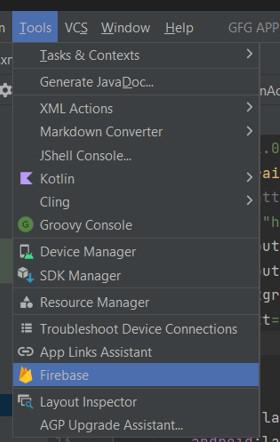
First, in the Android studio, Top Click on Tools > Firebase.
👁 aa1.jpg
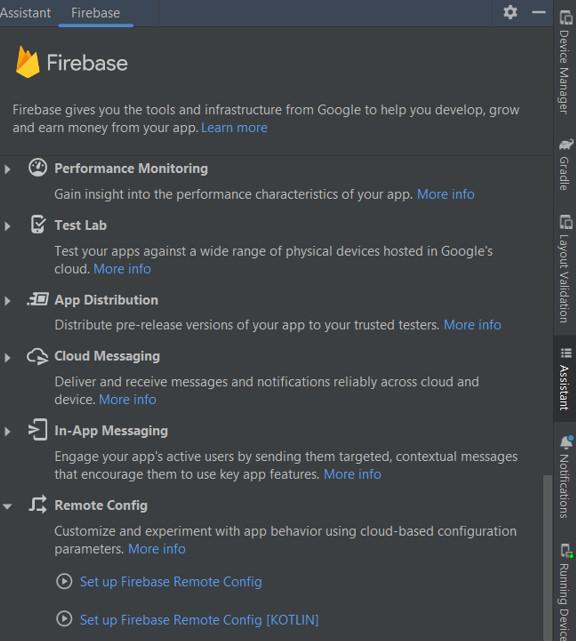
Then lots of options will be displayed on the left side then click on remote config and click on Set up Firebase Remote Config after that.
👁 aa2.jpg
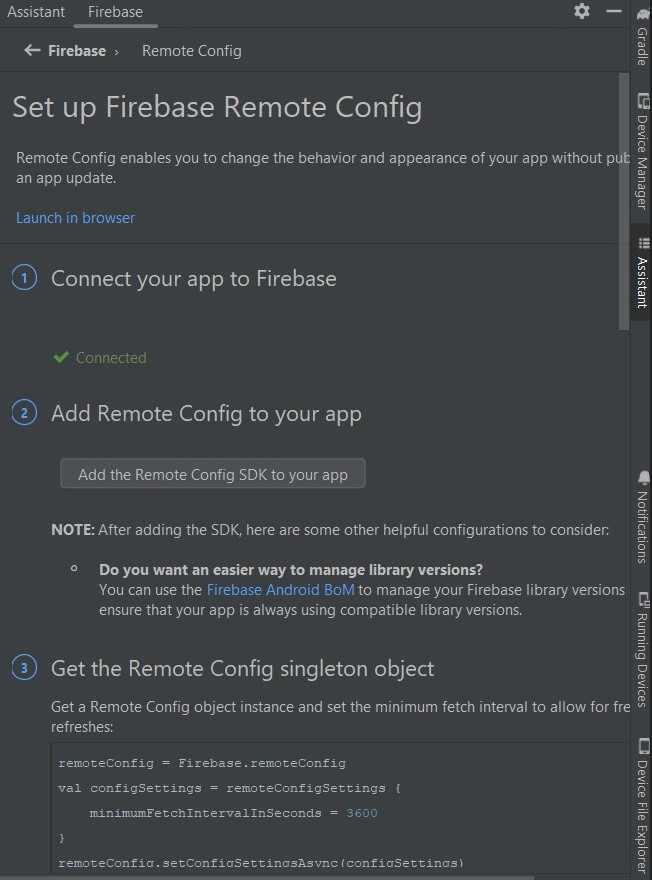
Now Connect Your app to Firebase and add all the dependencies of Firebase Remote Config by Clicking on Add Remote Config To Your App.
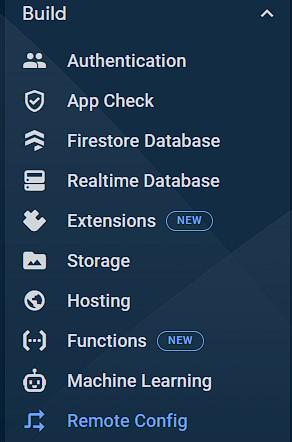
Step 3: Now Go To Your Project Dashboard of Firebase Console After successfully connecting your Android app to Firebase and Click on Build and From Drop Down Select Remote Config.
After Selecting Remote Config Click on Remote Config and Click on Create Configuration, After that add the Parameter Name that will be used while fetching the remote config and also for the default value and Set Data Type As a String and in Default Value add your package name with the activity name like that:
👁 aa5.jpg
Step 4: We have changed the splash Screen To One New Activity that is SplashScreen and moved the intent filter to that activity so that when the user opens the app then that activity will be displayed to do that you can edit the AndroidMainfest.xml file.
Step 5: Now Create one Android Resource Directory with Directory Name as XML and Resource Type also as XML, if it is present by default then don't create that and just create one layout resource layout that will be used when we'll enable the use-in app default in the remote config then automatically that activity will be opened that is specified here as by default value, so the file name is defualt_config.xml.
Step 6: We have created one more activity that is activity.main2.xml and added one text view just for showing Maintenace is Going on when the app opens after the splash screen and a similar layout for the activity.main2.xml file.
Step 7: Now in Java file we have to fetch the remote config based on the parameter name that we specified and also add if we change the remote config value to in-app default and also use network callback if suddenly the internet stops working when the splash screen opens then auto automatically on that screen only it'll again start fetching the remote config.
activity_splash_screen.xml:
SplashScreen.java:
Note: To change the Remote Config Just Click on The edit option that is visible on the left side and after editing make sure to publish the changes.
If Default Value is set to "com.example.gfgapp.MainActivity2", after a few seconds if Default Value is Set To Use-In App Default.