|
VOOZH | about |
|
VOOZH | about |
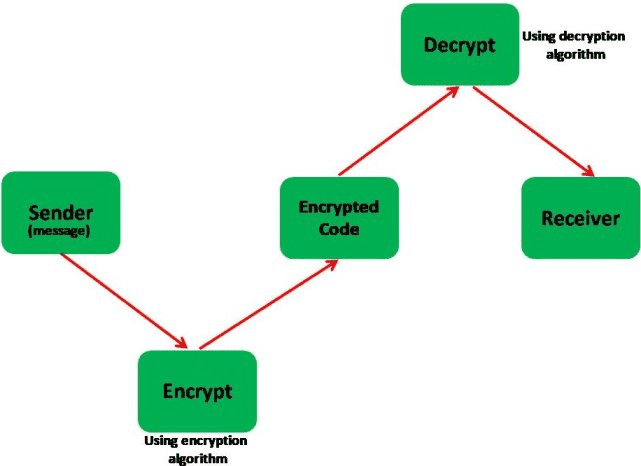
Cryptography is a technique of securing information and communications through the use of codes so that only those people for whom the information is intended can understand it and process it. Thus preventing unauthorized access to information. The prefix “crypt” means “hidden” and suffix graphy means “writing”.
In this article, we will be building an Android Application that can Encrypt and Decrypt a message using the Encoding and Decoding algorithm respectively. The app's homepage will give the user two option:
To create a new project in Android Studio please refer to How to Create/Start a New Project in Android Studio.
Note: Select Java/Kotlin as the programming language.
In the MainActivity file, we will make the two buttons work in order to open the new activities. To do so we will use an Intent function that allows us to move from one activity to another. The two parameters of the Intent function are the current activity's class and the next activity's class. We will call this function inside onClickListener of the two buttons
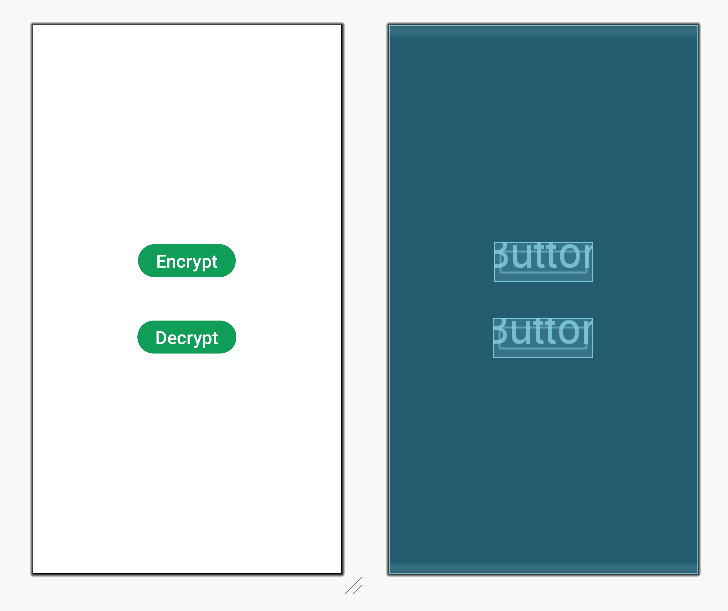
The XML codes are used to build the structure of the activity as well as its styling part. On the homepage, we will have two buttons for Encryption and Decryption in the center of the activity. At the top, we will have a TextView for the title of the app.
Design UI:
Create two Kotlin/Java file for encode and decode algorithms. Encoding algorithms are used to convert the text into an unreadable form, whereas Decoding algorithms are used to convert an encoded text into readable form. There are many algorithms that can be used to perform encryption and decryption. In this algorithm, we will be converting the text into a binary number using an Encryption algorithm. For this project, we will be using a customized algorithm. You can also use Base Type Encoding and Decoding Algorithms in Java.
In the Encoder.java file, we will call the function that we created in the Step 5 (Encode.java) file. First, we will get the String from the EditText and then pass the value in the encode function. That will return us the encrypted code of the string. After that, we will set the code to a TextView and if it's not empty we will allow the user to copy the code in the clipboard. To perform the Encryption function onClick method is used in the button. Similarly, we have also set the onClick() function for copying the code in the clipboard for the button. Below is the code for the Encoder.java file. Comments are added inside the code to understand the code in more detail.
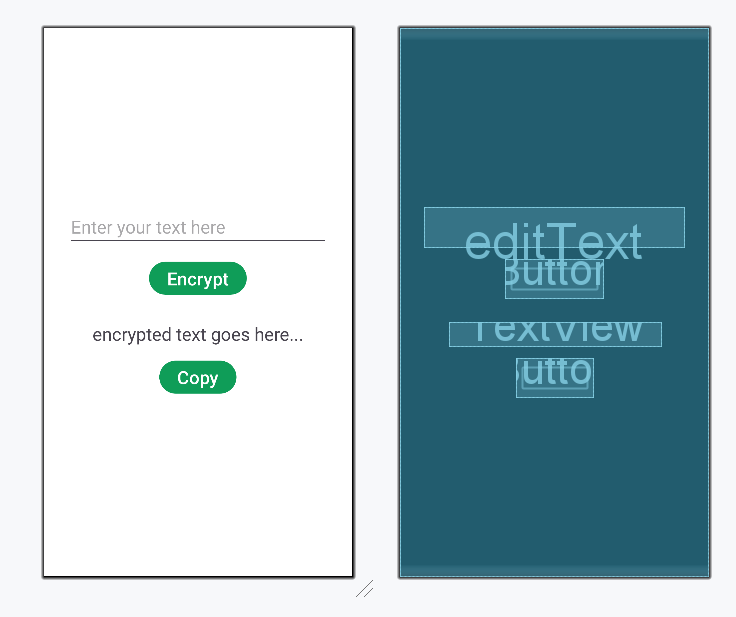
In the Encryption layout, we will have a TextView at top of the activity to display its title. Next, we will have a View to create a margin line. Next, there will be TextView and an EditText to input the text that is to be encrypted. Below that we will have a Button to encrypt the text. To display the encrypted code we have another TextView with a Button to copy it. Below is the XML code for the activity_encoder.xml file.
Design UI:
In the Decoder.java file, we will call the function that we created in the Step 5 (Decode.java) file. First, we will get the encrypted code from the EditText and then pass the value in the decode function. That will return us the decrypted text of the string. After that, we will set the text to a TextView, and if it's not empty we will allow the user to copy the code in the clipboard. To perform the Decryption function onClick() method is used in the button. Similarly, we have also set the onClick() function for copying the code in the clipboard for the button. Below is the code for the Decoder.java file. Comments are added inside the code to understand the code in more detail.
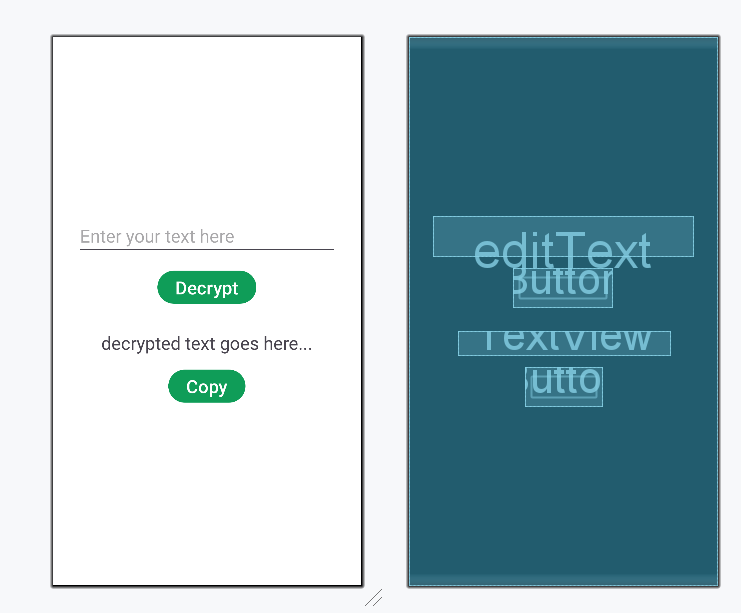
In the Decryption layout, we will have a TextView at top of the activity to display its title. Next, we will have a View to create a margin line. Next, there will be TextView and an EditText to input the encrypted code that is to be decrypted. Below that we will have a Button to decrypt the text. To display the decrypted code we have another TextView with a Button to copy it. Below is the XML code for the activity_decoder.xml file.
Design UI:
Refer to the following github repo for the entire code: Encrypt_Decrypt_Text_Android