|
VOOZH | about |
|
VOOZH | about |
Light-on-dark color scheme, also called dark mode, is a supplemental mode that uses a color scheme in which content of a webpage is displayed on a dark background. Such a color scheme reduces the light emitted by screens and enhances readability. Switching to dark mode allows website users to move to an eye-friendly and resource-saving design whenever they want.
Dark mode or night mode has been getting a lot of buzz lately as Google has included it in their Latest Android version i.e. Android Q (API Level 29) and following that more and more apps started supporting dark mode natively because it has many benefits:
To create a new project in Android Studio please refer to How to Create/Start a New Project in Android Studio.
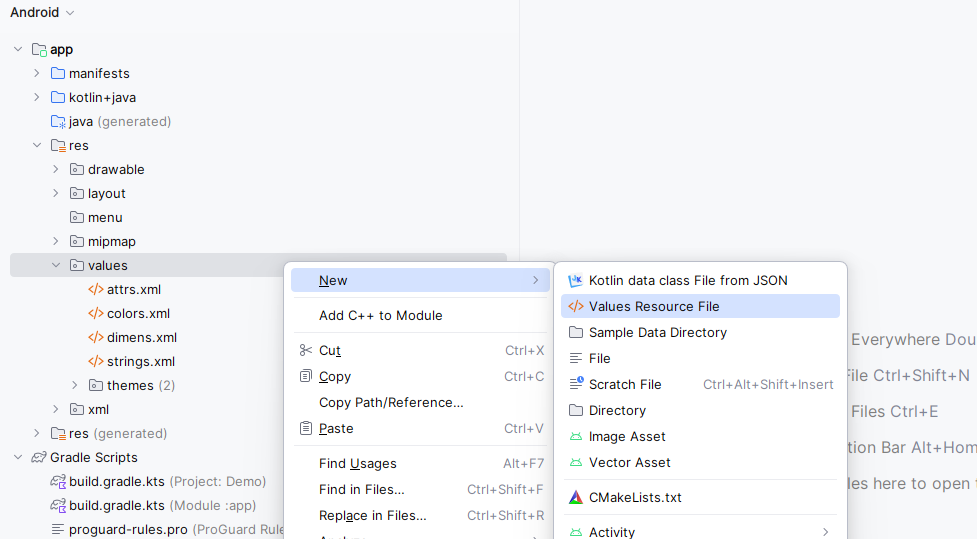
Navigate to app > res > values, right click on the folder and select New > Value Resource File.
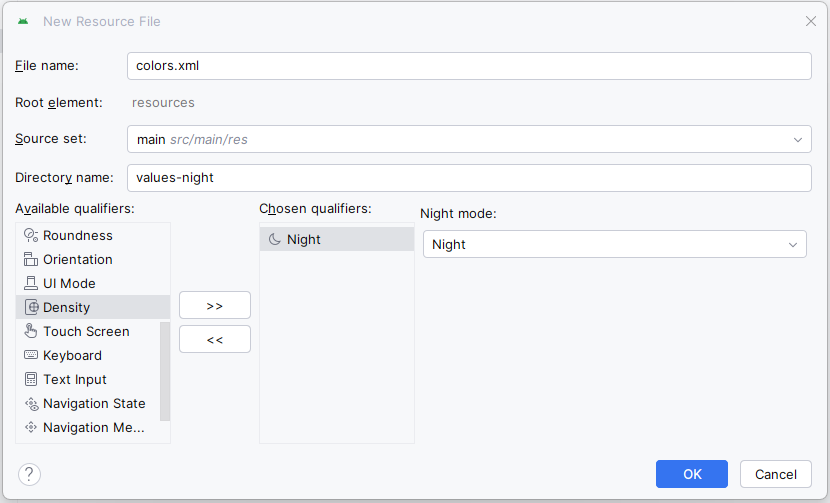
Now, a new dialog box will open. Set the file name as colors.xml, in the section "Available qualifiers:", choose Night mode and click the ">>" button. Now, in the new "Night mode:" drop down menu select Night. Then, click OK.
Now, there are two colors.xml files, one for light mode and other night mode. Let's customise for both light/dark mode. Add the following color attributes in both the files to setup dark mode.
Navigate to app > res > activity_main.xml and add a button or switch to toggle On/Off Dark Mode and some texts and images. Now, add the colors to the views to make it toggle on switch click.
activity_main.xml:
In this file, simply use the AppCompatDelegate.setDefaultMode() and the switch to toggle between light and dark mode.
MainActivity File:
Save the state of the app so that, when the user reopens the app after applying Dark/Light Mode that mode retains. We will use SharedPreferences to save the state of the app.
Refer to the following github repo to get the entire code:Dark-Mode-Android