|
VOOZH | about |
|
VOOZH | about |
Material Design Components (MDC Android) offers designers and developers a way to implement Material Design in their Android applications. Developed by a core team of engineers and UX designers at Google, these components enable a reliable development workflow to build beautiful and functional Android applications.
If you like the way how the UI elements from Google Material Design Components for android which are designed by Google are pretty awesome, then here are some steps that need to be followed to get them, and one of them is Google Material Design Components (MDC) Date Picker. There are a lot of date pickers available for Android which are Open Source. But the Material design date pickers offer more functionality to the user and are easy to implement for developers.
In this guide, we will implement two types of Material Design Date Pickers using Java and Kotlin:
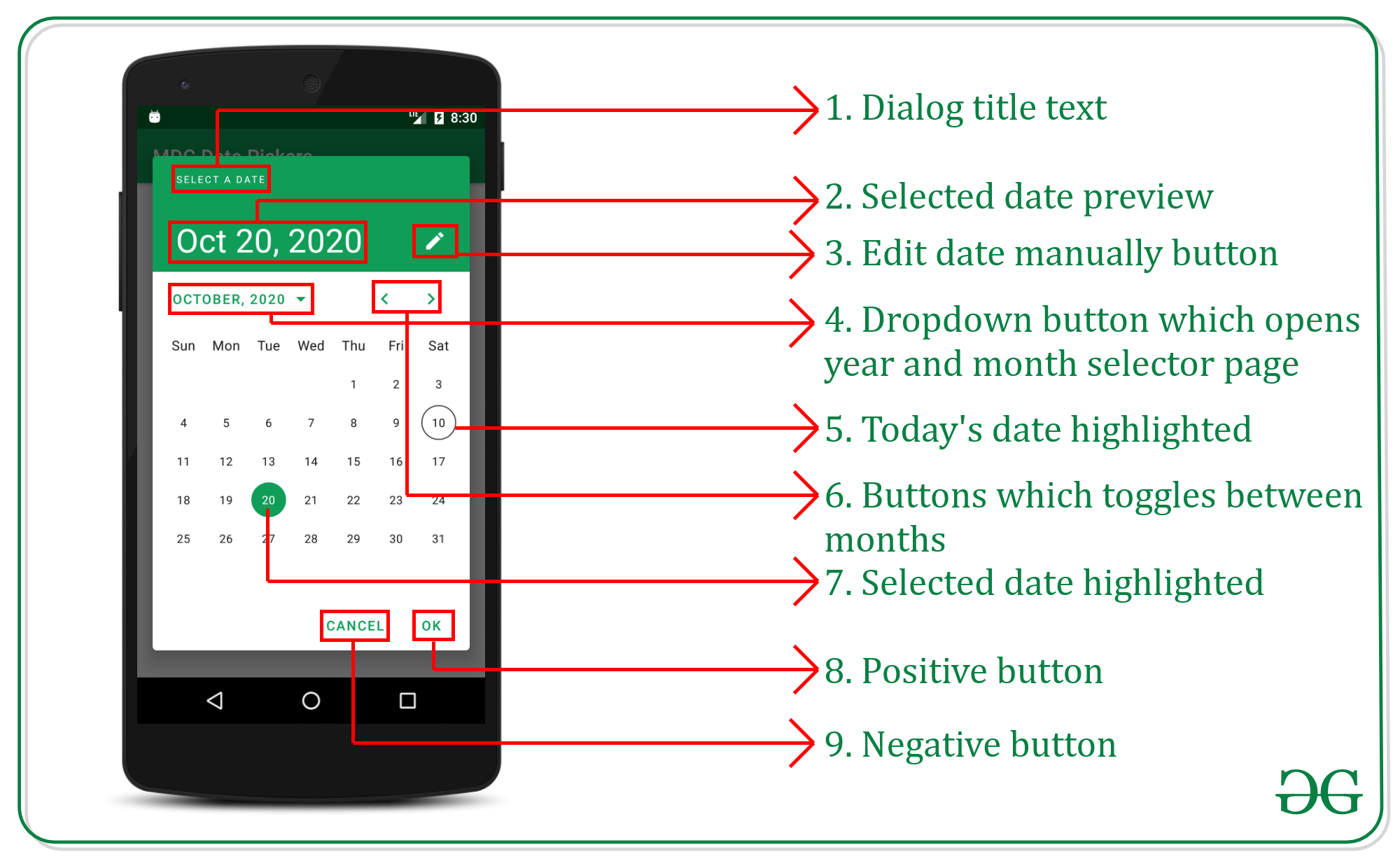
Before going to implement the material design date picker, understanding the parts of the dialog box is necessary so that it can become easier while dealing with parts of the dialog box in java code.
👁 Skeleton of Date Picker Dialog Box
To create a new project in Android Studio please refer to How to Create/Start a New Project in Android Studio.
Note that select Java/Kotlin as the programming language.
Now add the following dependency to the build.gradle.kts Module-level file.
implementation ("com.google.android.material:material:1.12.0")After invoking the dependency click on the "Sync Now" button. Make sure you are connected to the network so that Android Studio downloads all the required files.
Go to app > src > main > res > values > themes.xml and change the base application theme. The MaterialComponents contains various action bar theme styles, one may invoke any of the MaterialComponents action bar theme styles, except AppCompat styles. Below is the code for the styles.xml file. As we are using material design components this step is mandatory.
themes.xml:
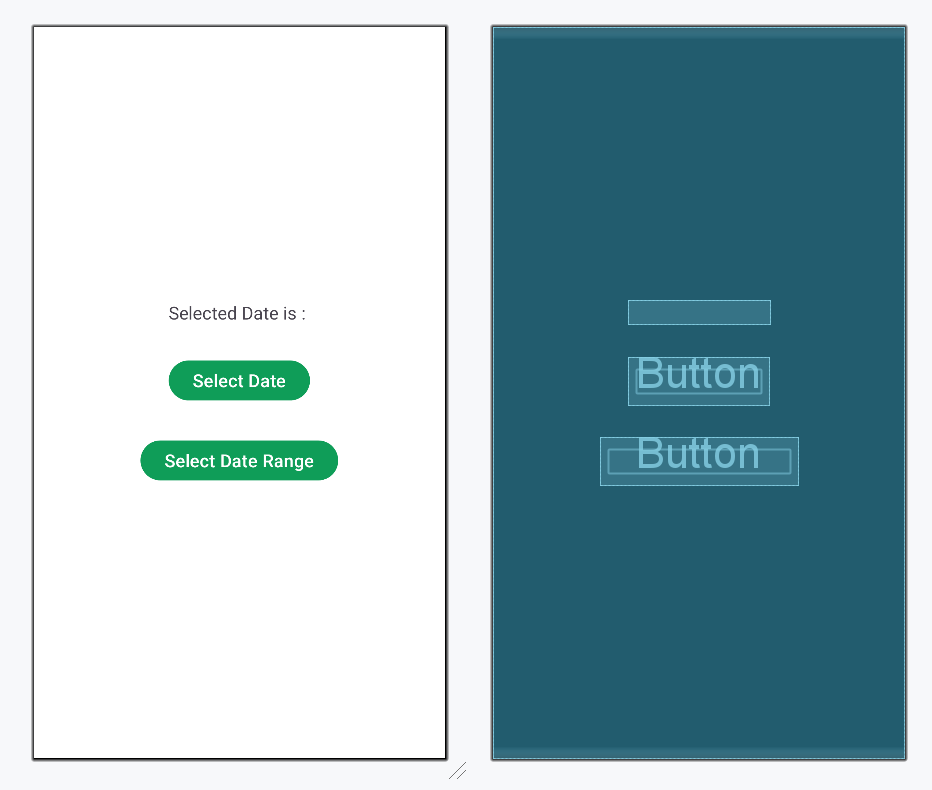
Invoke the following code for the application interface or can design it according to one's needs.
And this is going to remain the same for the entire discussion. Below is the code for the activity_main.xml file.
activity_main.xml:
Design UI:
Go to the MainActivity file, and refer to the following code in both Java and Kotlin. In this file we are creating an instance of the Date Picker builder and using .build() to show the picker. Comments are added inside the code to understand the code in more detail.
MainActivity file:
To implement more functionalities of Material Design Date Picker please refer to More Functionalities of Material Design Date Picker in Android article.