|
VOOZH | about |
|
VOOZH | about |
A Material Search Bar is an essential component in modern Android applications, enhancing the user experience by allowing quick searches. Google’s Material Design provides sleek, user-friendly search bars that blend well with UI/UX standards. This guide will help you integrate a Material Search Bar in your Android app.
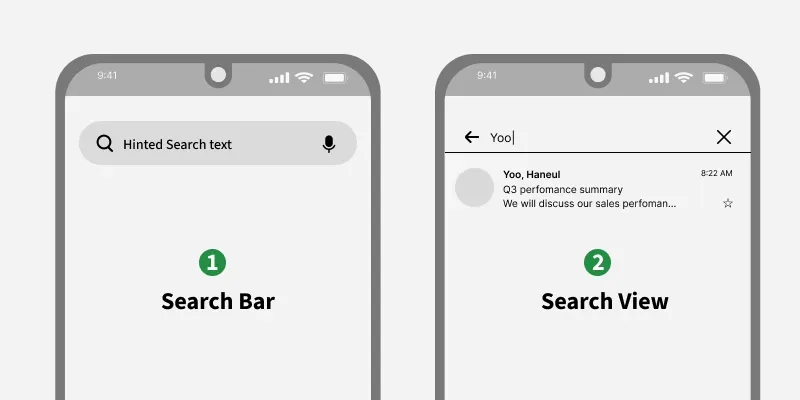
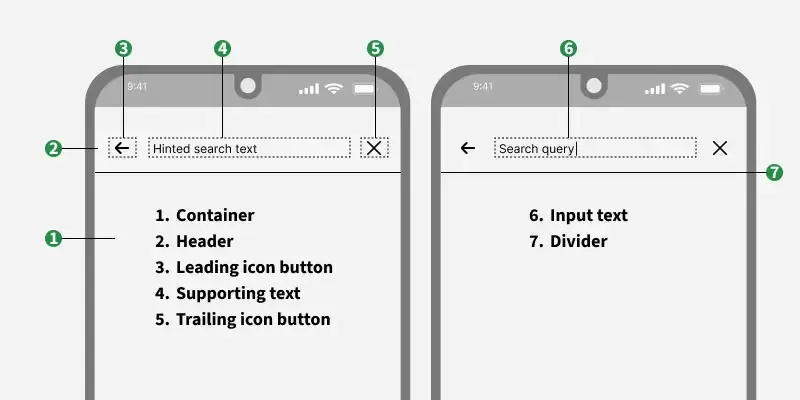
In the below anatomy taking the example of an basic application, one can see the primary action here is search and on tap it opens the Search View.
To create a new project in Android Studio please refer to How to Create/Start a New Project in Android Studio.
We will be using Android’s Material Design Library so we need to import it in the build.gradle.kts (Module :app) file . Here’s the dependency we need to add:
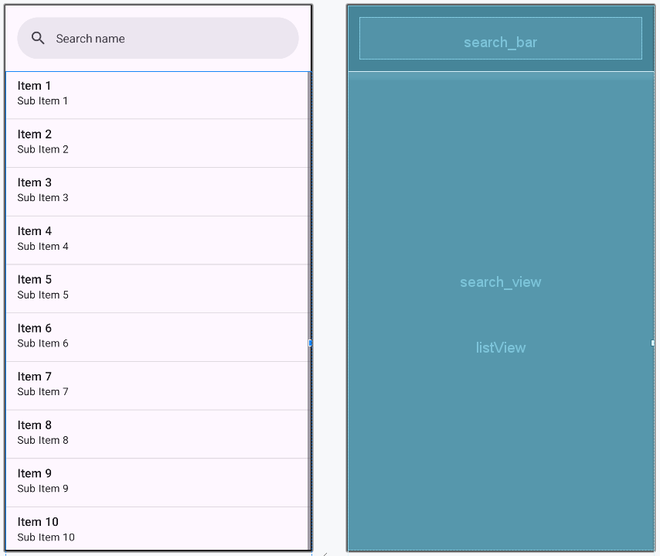
implementation("com.google.android.material:material:1.12.0")We are going to create a SearchBar and a SearchView, which work together to let users type in their search. There is also a ListView that shows a list of names. When the user taps on the SearchBar, the SearchView pops up so they can type in a name to search. The whole layout is inside an AppBarLayout to make sure everything looks neat and follows Material Design rules.
activity_main.xml:
First, let's set up the SearchBar, SearchView, and ListView with a list of names. When the user taps on the SearchBar, the SearchView appears so they can start searching. As they type, a TextWatcher listens for changes and updates the list to only show names that match the search. This way, the list filters in real-time, making it easy for users to find what they are looking for. The code for the MainActivity file is given below in both Java and Kotlin.