|
VOOZH | about |
|
VOOZH | about |
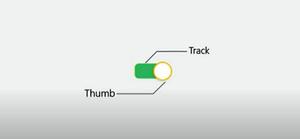
In this article, we are going are build a very simple and interesting app "SlidingToggleButton" in Android Studio. Android Studio is really a great platform for app designing. We can use both Java and Kotlin Language for programming in Android Studio but note that we will be using java for our app development. ToggleButton is mainly an off/on button with a light indicator that indicates the current state of the toggle button. The most common examples of ToggleButton are doing on/off in sound, Bluetooth, wifi, hotspot, etc. The Switch is another type of toggle button that came into effect since Android 4.0 which provides a slider control. Starting with ToggleButton, we turned to switch, and now, from Android Support Library v21, we have a new style called SwitchCompat that we are going to use in our app. This widget works fine with any Android 7+ SDK. SwitchCompat is a complete copy of the core Switch widget that brings the functionality of that widget to older versions of the platform. Below is the image of ToggleButton that we are going to create. The rectangular shape is called "Track" and the oval shape is called "Thumb".
A sample GIF is given below to get an idea about what we are going to do in this article.
👁 Sliding Toggle Button in Android Sample GIF
Step 1: Create a New Project
To create a new project in Android Studio please refer to How to Create/Start a New Project in Android Studio. Note that you have to select Java as the programming language.
Step 2: Create a File for "Track"
We have to create a separate drawable file for the Track part of the image. To create this file Navigate to res > drawable. Now you have to Right Click on drawable then click on New and then on Drawable Resource File. It has been shown in the image given below.
After clicking on Drawable Resource File we can create a new drawable file like this given below in the image. Give a name to your file and then click OK, our track file has been created.
Step 3: Working with the track.xml file
Navigate to res > drawable > track.xml and add the below code to that file. We will create the track part of the toggle button and implement its features. I have made the track rectangular in shape with some strokes and corners radius so that it looks attractive. Its color is set to green color having color code "#34c759" when the ToggleButton is turned on and when the ToggleButton is turned off it is set to white color having color code "#8c8c8c".
Step 4: Create a File for "Thumb"
We have to create a separate drawable file for the Thumb part of the image. To create this file Navigate to res > drawable. Now you have to Right Click on drawable then click on New and then on Drawable Resource File. After clicking on Drawable Resource File you will get an image like this given below:
You have to just add a file name and then click OK, your thumb file has been created.
Step 5: Working with the thumb.xml file
Navigate to res > drawable > tracks.xml and add the below code to that file. We will create the thumb part of the toggle button and implement its features. Thumb is made oval in shape filled with white color. It moves towards the right having a border color of green("#34c759") when the toggle button is turned on and moves towards the left having a border color of white("#8c8c8c") when the toggle button is turned off.
Step 6: Working with the activity_main.xml file
Navigate to res > layout > activity_main.xml and add the below code to that file. Here I have added SwitchCompat instead of a simple switch. When the ToggleButton is turned on it displays the text "on" and it displays "off" when the ToggleButton is turned off.
XML Attributes
android:thumb (Drawable to use as the "thumb" that switches back and forth)
android:track (Drawable to use as the "track" that the switch thumb slides within)
android:showText (whether to draw on/off text)
android:textOn (Text to display when the switch is in the "on" state)
android:textOff (Text to display when the switch is in the "off" state)
Below is the code for the activity_main.xml file.
Step 7: Change the Title of the App
Go to the values folder first then choose the strings.xml file. Using this file we can change the title of our app. I have kept the title "GFG | SlidingToggleButton".
Step 8: Change the color of the AppBar
Go to the values folder first then choose the colors.xml file. In the colors.xml file, you can keep colors of your choice as many as you want to use in your app. You have to just give the name and put the color code of the respective colors. We have kept the AppBar color as “#0F9D58” which we have named as “green”.
Output:
You can get Source code on the GitHub link given below: https://github.com/Babitababy/SlidingToggleButton