|
VOOZH | about |
|
VOOZH | about |
Jetpack Compose is a new toolkit provided by Google. This is useful for designing beautiful UI designs. Android Text is a simple view in Android which is used to display text inside our App.
In this article, we will take a look at the implementation of Text in Android using Jetpack Compose.
Attributes | Description |
|---|---|
| text | to set the text which we have to display inside our Text. |
| style | to change the style of Text in Android. |
| color | to change the color of Text. |
| fontSize | to change the font size of our text. |
| fontWeight | to set the weight for our font ie. to extra bold, dark, and many more |
| fontStyle | to set font style to italic. |
| fontFamily | to change the font family of our text. |
| letterSpacing | to set spacing in between letters of our Text. |
| background | to set the background color for our Text. |
| shadow | to add a shadow for our Text. |
| textAlign | to change the alignment of our Text. |
| modifier | the modifier is used to add padding to our Text. |
textDecoration | the decoration to be applied to the text |
lineHeight | the height of each line of text. |
overflow | how to handle overflowed text |
softWrap | whether to wrap the text if it exceeds the width of its container. |
maxLines | the maximum number of lines for the text |
minLines | the minimum number of lines for the text. |
onTextLayout | callback that is invoked when the text is laid out. |
To create a new project in the Android Studio Canary Version please refer to How to Create a new Project in Android Studio Canary Version with Jetpack Compose.
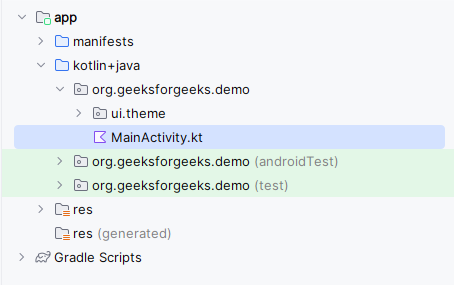
Navigate to the app > java > your app's package name and open the MainActivity.kt file. Inside that file add the below code to it.
Comments are added inside the code to understand the code in more detail.
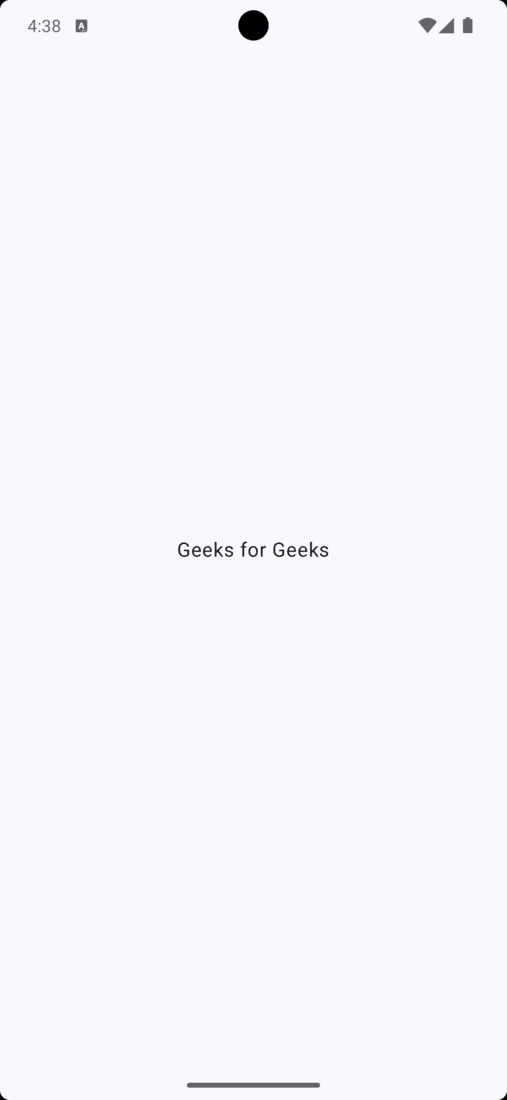
MainActivity.kt:
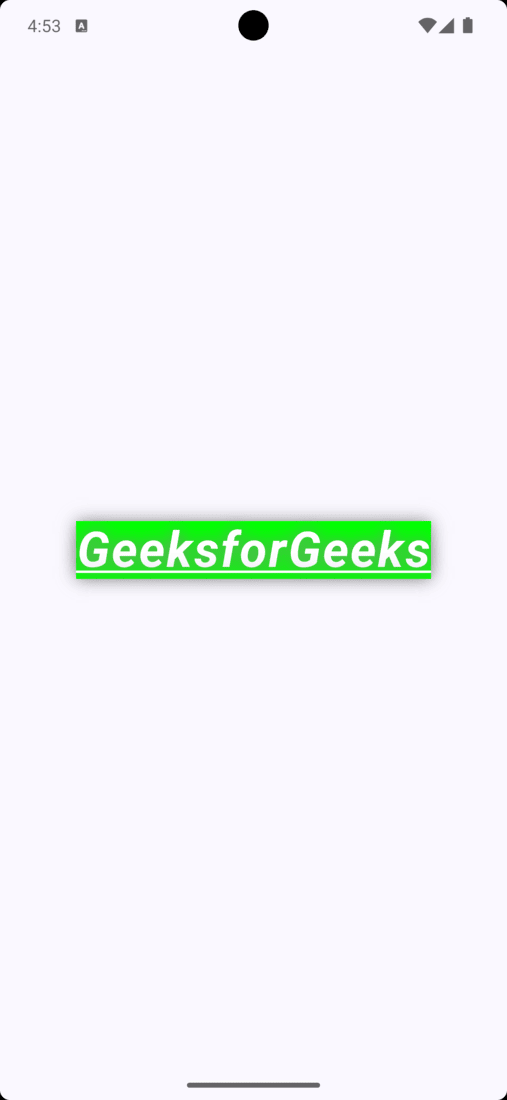
In this example we are adding some extra functionality to the Text.
MainActivity.kt: