|
VOOZH | about |
|
VOOZH | about |
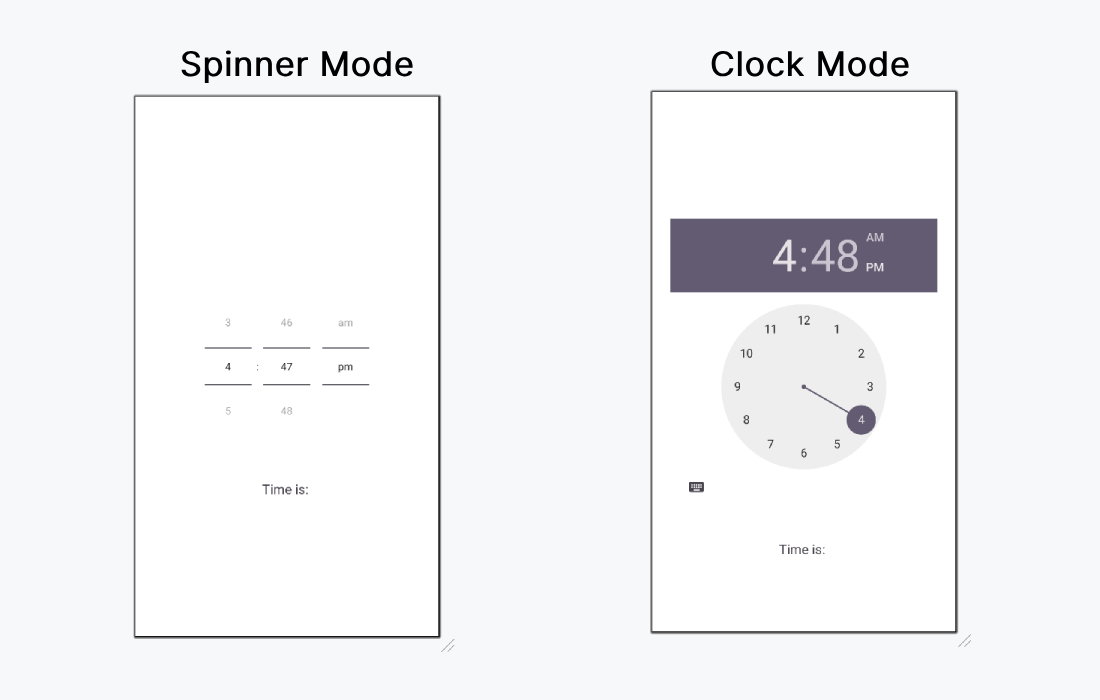
TimePicker Dialog is used in many applications where we have to book appointments based on a specific time. This widget is seen in the applications where we have to select specific time slots. In this article, we will take a look at How to use TimePicker Dialog on Android. TimePicker provides two display modes:
Note: This Android article covered in both Java and Kotlin languages.
To create a new project in Android Studio please refer to How to Create/Start a New Project in Android Studio.
We can use android:timePickerMode to choose which the mode for the TimePicker. The possible values are “clock” and “spinner”. This article demonstrate how to implement both type of modes.
activity_main.xml:
Design UI:
First of all, we declare two variables textView and timePicker to access the widgets from the XML layout using their id’s.
val textView = findViewById(R.id.textView)
val timePicker = findViewById(R.id.timePicker)
Then, we set the setOnTimeChangedListener(), to detect when the time is changed
timePicker.setOnTimeChangedListener { view, hourOfDay, minute ->
 // your code here
}
MainActivity file: