In this article, we will discuss how can we authenticate with Google using Firebase in React Native.
Creating React Application And Installing Module
Create a React app using the following command:
npx react-native@latest init AwesomeProject
Now install required npm packages:
npm i @react-native-google-signin/google-signin
npm install --save @react-native-firebase/app
npm install --save @react-native-firebase/auth
Setup Your Project on Firebase
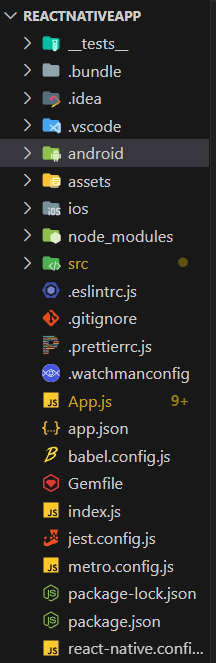
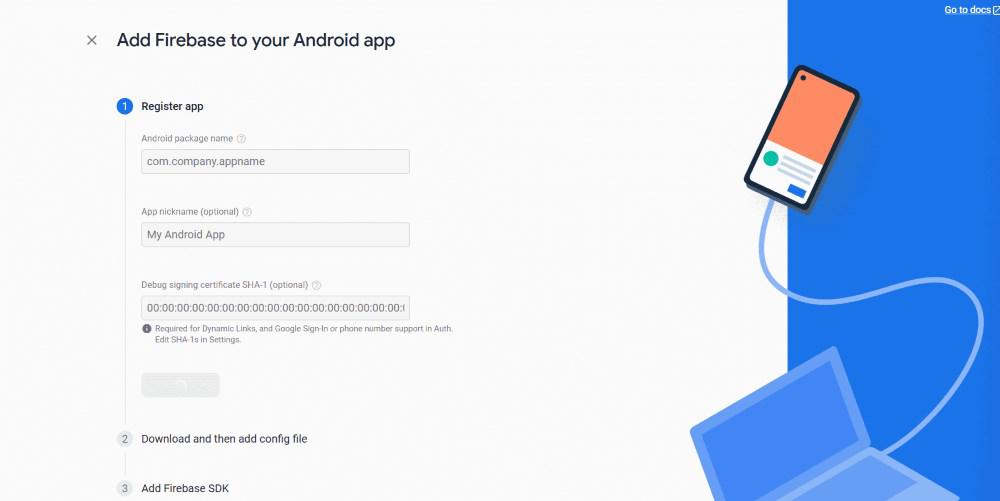
- Enter the required detail for setup project you can find package name in your project Android folder to generate
- SHA key run the following command from your project android folder ./gradlew signingReport
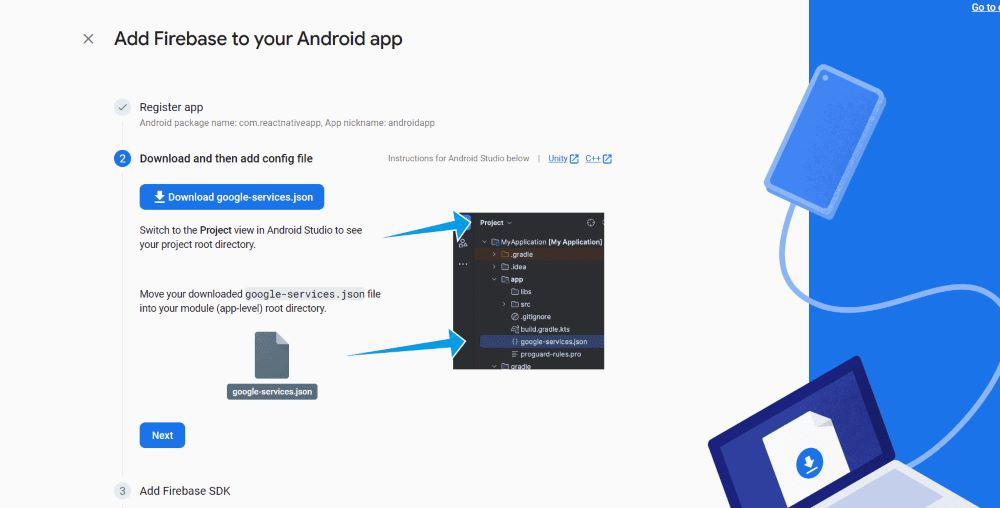
- download the google.config.file and follow the instructions mention on firebase to add firebase SDK
👁 Screenshot-2023-09-06-152335
👁 Screenshot-2023-09-06-152450
👁 Screenshot-2023-09-06-152601
- Go to authentication section on your firebase console and enable google sign in
👁 Screenshot-2023-09-07-085633
- Adding google auth code to your project:
Example:
- Replace your web client id with id given on your firebase project you can get web client id by
- Go to ->Firebase console-> Authentecation-> google ->web client id:
GoogleSignin.configure({
webClientId: 'Your client id', // Paste that web client id here
});- Run your react native app by command:
npm start
Output: