|
VOOZH | about |
|
VOOZH | about |
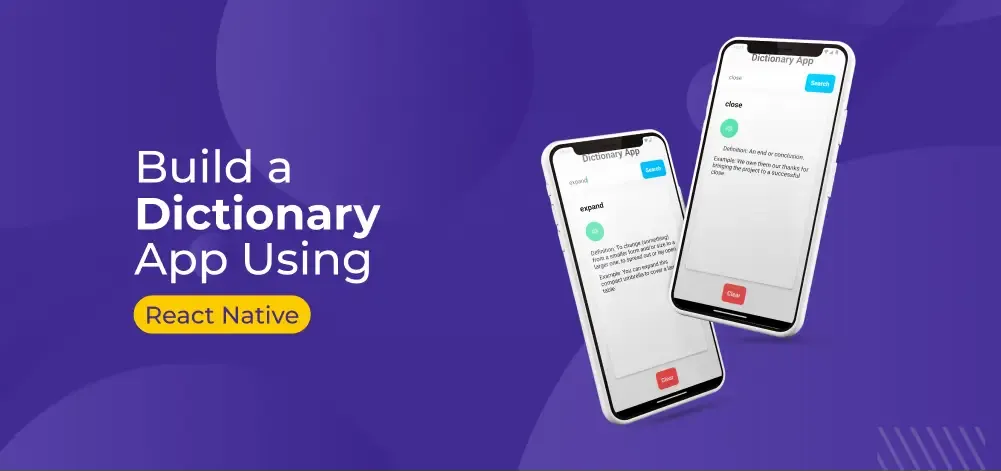
In this article, we will implement a Dictionary app using React Native. The app allows users to effortlessly search for word meanings, access definitions, listen to pronunciations, and examine example sentences.
To give you a better idea of what we’re going to create, let’s watch a demo video.
Note: This Section is to interact with the app which you are going to build.
Now, create a project with the following command.
npx create-expo-app app-name --template
Note: Replace the app-name with your app name for example : react-native-demo-app
Next, you might be asked to choose a template. Select one based on your preference as shown in the image below. I am selecting the blank template because it will generate a minimal app that is as clean as an empty canvas in JavaScript.
It completes the project creation and displays a message: "Your Project is ready!" as shown in the image below.
Now go into your project folder, i.e., react-native-demo
cd app-nameStart the server by using the following command.
npx expo startThen, the application will display a QR code.
Now, run the below command to install the expo-av library, which is used to access the audio.
npm install expo-avLet's dive into the code in detail.
Import required libraries at the top of the file.
Create a StyleSheet file, name it as Styles.js to style components like container, errorText, heading, etc.
This title explains what the app does. We use the text "Dictionary App" to show that the app is a Dictionary App.
In the below code, we have a TextInput component to take input from user and search button used to call getInfo function designed using TouchableOpactiy component, which will execute the logic of fetching the meaning and example for user input. These two components are wrapped with View Component to hold them together.
When the user entering any text or modifying the text inside the TextInput component it will send that input text to searchWord function using onChangeText prop in TextInput component, which will assign that text to newWord state variable by calling setNewWord state function with enteredWord and that newWord state variable further used in fetching the meaning and example process.
This function is used to make a GET request by appending the user input text, i.e, word to URL given in below code and set all states for that word like checkedWord, definition, example, error (optional) etc.
Display the Error text using the code below when the request or response is stuck with any error.
Display the meaning and example of the user input word when the response is successful using the code below.
The Below code consists of a Text component to display the word what user submitted, a Icon button to call playAudio function which will enable audio to read that word out and a Text component wrapped with View component with some styling for displaying Definition and example of that word, also wrap all these components with a ScrollView component to hold all component together and enable the scrollability.
This button is used to call a clear function, which clears the result UI and TextInput field, redefines the UI to write a new word again. It is designed using a Text component having some text like "Clear" wrapping with a TouchableOpacity component.
As we discussed in the clear Button, This function is used to clear the result UI and TextInput field, redefines the UI to write a new word again.
Now, wrap all design code with a View component, return it from the App component, and place all methods and useStates within the App component. Ensure to export the App.