|
VOOZH | about |
|
VOOZH | about |
In React Native, accessing platform and device details helps developers create apps that behave correctly on different devices and operating systems. It allows customization of features and UI based on platform-specific requirements.
Now, create a project with the following command.
npx create-expo-app app-name --templateNote: Replace the app-name with your app name for example : react-native-demo-app
Next, you might be asked to choose a template. Select one based on your preference as shown in the image below. I am selecting the blank template because it will generate a minimal app, as clean as an empty canvas in JavaScript.
It completes the project creation and displays a message: "Your Project is ready!" as shown in the image below.
Now go into your project folder, i.e., react-native-demo
cd app-nameStart the server by using the following command.
npx expo startThen, the application will display a QR code.
1. For the Android users,
2. For iOS users, simply scan the QR code using the Camera app.
3. If you're using a web browser, it will provide a local host link that you can use as mentioned in the image below.
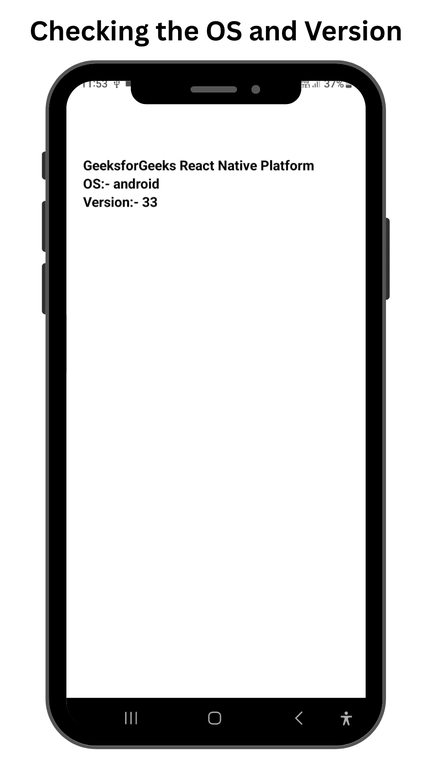
We can easily check the OS and version of the device the user is using. For this, we are going to use the Platform API of react-native.
App.js:
Output:
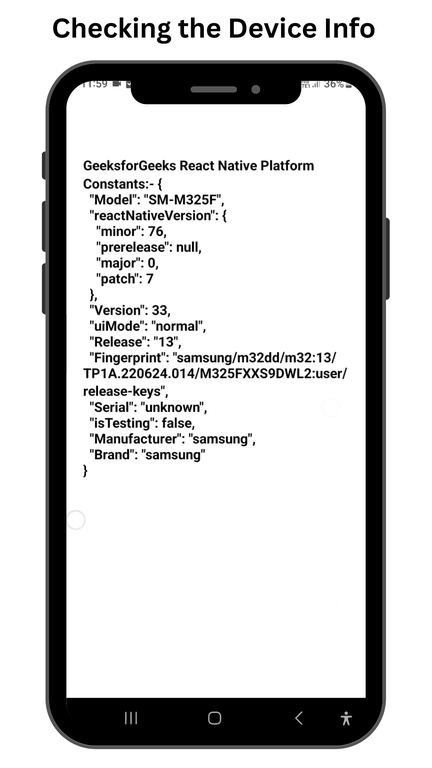
We can easily check the information of the device the user is using. For this, we are going to use the Platform API of react-native.
App.js:
Output: