 |
VOOZH | about |
|
VOOZH | about |
| Rarity tier | Common |
|---|---|
| Renewable | Yes |
| Stackable | Yes (64) |
{
 "title": "Map",
 "rows": [
 {
 "field": "<span style=\"white-space: nowrap;\"><span style=\"display: inline-block; background-color: #fff; border: 1px solid #888; border-radius: 0.3em; color: transparent; width: 1em; height: 1em; vertical-align: -0.36em; margin-right: -0.1em\"><br></span> </span> Common",
 "label": "(link to Rarity article, displayed as Rarity tier)"
 },
 {
 "field": "Yes",
 "label": "(link to Renewable resource article, displayed as Renewable)"
 },
 {
 "field": "Yes (64)",
 "label": "Stackable"
 }
 ],
 "invimages": [
 "Empty Map",
 "Empty Locator Map",
 "Map",
 "Map BE",
 "Locator Map",
 "Locked Map"
 ],
 "images": [
 "Map Zoom 4.png"
 ]
}
A map is an item used to view explored surface terrain and, in Java Edition, players. Maps can be cloned, zoomed out and locked using a cartography table. A locator map is a variant in Bedrock Edition which shows player locations.
In Bedrock Edition, a map can also be created using a single paper in a cartography table to create an empty map, or a paper and a compass for an empty locator map.
| Name | Ingredients | Cartography recipe | Description |
|---|---|---|---|
| Paper | This map only records terrain and does not show the player's location. | ||
| Paper + Compass |
👁 Invicon Paper.png: Inventory sprite for Paper in Minecraft as shown in-game linking to Paper with description: Paper
👁 Invicon Compass.png: Inventory sprite for Compass in Minecraft as shown in-game linking to Compass with description: Compass 👁 Invicon Empty Locator Map.png: Inventory sprite for Empty Locator Map in Minecraft as shown in-game linking to Empty Locator Map with description: Empty Locator Map |
This map records terrain and displays a marker showing the player's location. |
When creating a new world in Bedrock Edition, the player can enable the "Starting Map" option to spawn with an empty locator map in the hotbar. This option is not available in Hardcore mode. The map's zoom scale is 1:8.
| Item | Structure | Container | Quantity | Chance |
|---|---|---|---|---|
| Java Edition | ||||
| 👁 Image |
👁 Image Shipwreck |
Map chest | 1 | 7.7%{ "item": "Empty Map", "stacksize": 1, "chance": 0.07688803032512026, "structure": "Shipwreck", "container": "Map chest" }
|
| 👁 Image Stronghold |
Library chest | 1 | 10.9%{ "item": "Empty Map", "stacksize": 1, "chance": 0.10885842114094657, "structure": "Stronghold", "container": "Library chest" }
| |
| 👁 Image Village |
Cartographer's chest | 1–3 | 46.2%{ "item": "Empty Map", "stacksize": "1–3", "chance": 0.462144, "structure": "Village", "container": "Cartographer's chest" }
| |
| Java Edition 26.3 | ||||
| 👁 Image |
👁 Image Abandoned Camp |
Common chest | 1 | 27.5%{ "item": "Empty Map", "stacksize": 1, "chance": 0.2747977375984192, "structure": "Abandoned Camp", "container": "Common chest" }
|
| Secret chest | 1 | 75.6%{ "item": "Empty Map", "stacksize": 1, "chance": 0.756103515625, "structure": "Abandoned Camp", "container": "Secret chest" }
| ||
| Bedrock Edition | ||||
| 👁 Image [A] |
👁 Image Shipwreck |
Map chest | 1 | 7.7%{ "item": "Map", "stacksize": 1, "chance": 0.07688803032512026, "structure": "Shipwreck", "container": "Map chest" }
|
| 👁 Image Stronghold |
Library chest | 1 | 10.5%{ "item": "Map", "stacksize": 1, "chance": 0.10505089050634986, "structure": "Stronghold", "container": "Library chest" }
| |
| 👁 Image Village |
Cartographer's chest | 1–3 | 46.2%{ "item": "Map", "stacksize": "1–3", "chance": 0.462144, "structure": "Village", "container": "Cartographer's chest" }
| |
| Bedrock Edition 26.40 | ||||
| 👁 Image |
👁 Image Abandoned Camp |
Common chest | 1 | 27.5%{ "item": "Empty Map", "stacksize": 1, "chance": 0.2747977375984192, "structure": "Abandoned Camp", "container": "Common chest" }
|
| Secret chest | 1 | 75.6%{ "item": "Empty Map", "stacksize": 1, "chance": 0.756103515625, "structure": "Abandoned Camp", "container": "Secret chest" }
| ||
| Villager | Probability | Villager wants | Player receives | Trades in stock | Villager experience | Price multiplier | ||
|---|---|---|---|---|---|---|---|---|
| JE | BE | |||||||
| 👁 Image Cartographer | 👁 Image Novice | 100% | 100% | 7 × 👁 Image Emerald | 👁 Image Empty Map | 12 | 1 | 0.05 |
In Java Edition, cartographer villagers may give players with the Hero of the Village effect an empty map.
Crafting a map creates an empty map. The map is drawn for the first time when it is held and used (by pressing the use item control). After conversion to a drawn map item, it starts to draw a top-down view of the player's surroundings, with North pointing to the top of the map. A pointed oval pointer indicates the player's position on the map, and moves in real-time as the player moves across the terrain shown on the map. In Bedrock Edition, this pointer is displayed exclusively on locator maps.
The map does not center on the player when created; rather, the world is broken up into large invisible grid squares, and the map displays the area of whichever grid square it was in when it was first used. For example, if a player uses a new map in a certain grid square, then moves a distance away and uses another fresh map within the same grid square, both maps still have the exact same boundary. To make a map with different bounds than the first one, the player would have to move outside of the edges of the first map to enter a new grid square. This way, no two maps of the same size can ever partially overlap. However, by externally editing a map's NBT file, the center coordinate of a map can be changed to arbitrary X and Z integer coordinates, and it will work correctly. So, technically, this restriction on possible center positions only applies to map creation.
To record the world on a map, that specific map must be held in either of the player's hands while the player moves around the world. The map records terrain within a 64-block radius (4 chunks) from a player in the Overworld or the End, or 32 blocks in the Nether. The map only records the surface even if the player is underground. The world is recorded as-is during exploration, meaning that if the world is modified, a player must revisit the area while holding the map to update the map.
Maps display as a mini-map when held in the off-hand, or if the off-hand slot is occupied; the map is full-sized only when held in the dominant hand with both hands free.
Maps can be cloned to synchronize them or framed for display.
To create a custom picture, a player can make a large piece of pixel art (128×128) facing upward, center a map on it, and place that map in an item frame. Locking is recommended. See Map item format § Map pixel art for details on the techniques.
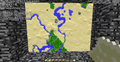
Maps are shown as a 128×128 square grid of colored pixels, with each pixel representing a square portion of land. A standard map (meaning zoom level 0/4) represents 128×128 blocks with 1 block per pixel. It can be zoomed out to represent up to 2048×2048 blocks with 16×16 blocks per pixel at zoom level 4/4.
In Java Edition, the color of a map pixel generally matches the color of the most common opaque block in the corresponding area, as seen from a bird's-eye view. 'Minority blocks' in the target area have no effect on the color of the pixel, thus small features tend to be undetectable on zoomed-out maps.
In Bedrock Edition, the color of a map pixel instead matches the single top-most opaque block in a grid sized by the map's scale factor. For example, a map with zoom level 3/4 has a pixel size of 8×8 blocks; this means the map reads only the top-most opaque blocks at the 0,0 coordinate, the 8,0 coordinate, the 0,8 coordinate, etcetera, ignoring all other blocks in the area. This means that in Bedrock Edition, map pixel art requires only one block per pixel regardless of map magnification.
In Bedrock Edition, grass, foliage and water colors that are biome-dependent are represented accurately on a map.
| Java Edition | Bedrock Edition |
|---|---|
| 👁 Image |
👁 Image |
| Biome colors in Java Edition. | Biome colors in Bedrock Edition. |
On land above water, a block's color is darker if placed at a lower elevation than the block north of it, or brighter if placed at a higher elevation than the block north of it. Maps also show ground up to about 15 blocks below the surface of the water as slightly lighter blue, to show where the ground rises.
While maps in the Nether work, they show only a red-and-gray pattern, regardless of the blocks placed. The only useful function is finding where the player is in relation to framed copies, which show as green pointers. Additionally, the player pointer rapidly spins and is not a good indicator of direction. In Java Edition, banner markers placed in the Nether still show on the map as usual. Despite its unreliability, having a mapped trail can still be useful in some cases, such as while riding a strider over lava. Maps in the End work as usual, mapping the terrain and showing the accurate location and direction of the player.
In Java Edition, holding a map from the Overworld in a different dimension shows the player's last position and direction in the Overworld. This effect is temporary, and the marker disappears after quitting and joining the world/server again.
In Bedrock Edition, an Overworld locator map in the Nether shows the player's relative location and direction in the Overworld. Similarly, a Nether locator map in the Overworld shows the player's relative location in the Nether, but the place marker spins. An Overworld locator map in the End shows the world spawn. A Nether locator map cannot be used in the End — the map appears, but the place marker is not shown anywhere — and similarly, an End locator map cannot be used in the Overworld or the Nether. The place marker changes color depending on the dimension that the player is currently in (white for the Overworld, red for the Nether, and magenta for the End).
A map can be zoomed out up to 4 times, increasing the covered area from 128×128 blocks up to a maximum of 2048×2048 blocks. An empty map cannot be zoomed out; it needs to be activated for the zooming to be possible. Changing the zoom level of a map resets its contents, and terrain needs to be explored again to be drawn on the zoomed out map.
Locked maps cannot be zoomed out.
| Name | Ingredients | Anvil usage | Description |
|---|---|---|---|
| Map or Locator Map (zoomed out) | or Locator Map + Paper |
MapLocator Map👁 Invicon Map BE.png: Inventory sprite for Map in Minecraft as shown in-game with description: Map
👁 Invicon Map BE.png: Inventory sprite for Map in Minecraft as shown in-game with description: Locator Map 👁 Invicon Paper.png: Inventory sprite for Paper in Minecraft as shown in-game linking to Paper with description: Paper 8👁 Invicon Map BE.png: Inventory sprite for Map in Minecraft as shown in-game with description: Map 👁 Invicon Map BE.png: Inventory sprite for Map in Minecraft as shown in-game with description: Locator Map |
[Bedrock Edition only]
Supplying 8 sheets of paper results in a zoomed-out version of the input map.
|
The zooming function starts from when the map is created (zoom level 0/4) up to its fourth zoom step (zoom level 4/4).
Maps are always aligned to a grid at all zoom levels. That means zooming out any different map in a specific area covered by that map always has the same center. As such, maps are aligned by map width (1024 blocks for a level 3 map) minus 64. A level 3 map generated at X=0 Z=0 covers X and Z coordinates from -64 to 959. All maps generated in this area zoom out to the same coordinates, guaranteeing that they are always 'aligned' on a map wall. For a zoomed-out map to cover a new area, it must start with a base (level 0) map that is in that new area.
At zoom level 0, a map created on the point (0,0) has (0,0) at the center of the map. At higher zoom levels of the same map, the coordinate (0,0) is in the top left square of the map.
In Java Edition, the zoom level and the scaling factor are displayed in the tooltip of a map by turning on advanced tooltips (a debug option that can be toggled by using the key combination + ). In Bedrock Edition, the zoom level of a map is always displayed in its tooltip.
A map can be cloned to create multiple synchronized copies linked to the same map data. Multiple players can hold clones of the same map to record different parts of the world simultaneously.
Upon cloning a map, the parts of the world that have already been explored and mapped are copied; thereafter, newly explored areas appear on all cloned instances automatically. The resulting copies have the same zoom level as the starting map. If one of the maps is later zoomed out, then that map loses its connection to the original and functions as a completely separate map that has to be individually filled by exploring.
All cloned maps stack with each other, unless renamed. Even if renamed, the mapped areas continue to remain in sync.
In Bedrock Edition, both empty maps and empty locator maps may be used to clone a map. Whether the cloned maps show position markers is dependent only on the input map. For this reason, using an empty locator map instead of an empty map for cloning is a waste of a compass.
In Creative mode, a map in an item frame may be cloned by using pick block on it, as long as that map is not also in the player's inventory.
Holding any map in Java Edition, or a locator map in Bedrock Edition, displays a white pointer that marks the position of the player and points in the same direction as the player. When a player moves out of a map, the pointer turns into a white dot which moves along the edge relative to the player's position. The marker disappears if the player is too far from the mapped area; in explorer maps, the dot becomes smaller instead of fully disappearing. The distance on the X or Z axis from the map's edge required for the dot to vanish (regular maps) or to turn smaller (explorer maps) depends on the zoom level of the map:
In multiplayer, other players are displayed on the map only if they have a map in their inventory cloned from the one being looked at. Other players are marked using white pointers. Players wearing a carved pumpkin are not marked on other players' maps.
In Bedrock Edition, position markers are displayed exclusively on locator maps. A map without position markers can be turned into a locator map at a later time by combining it with a compass on the crafting grid, on an anvil, or at a cartography table.
| Ingredients | Cartography recipe | Description |
|---|---|---|
| Map or Empty Map + Compass |
👁 Invicon Map BE.png: Inventory sprite for Map in Minecraft as shown in-game with description: Map
👁 Invicon Empty Map.png: Inventory sprite for Empty Map in Minecraft as shown in-game linking to Empty Map with description: Empty Map 👁 Invicon Compass.png: Inventory sprite for Compass in Minecraft as shown in-game linking to Compass with description: Compass 👁 Invicon Map BE.png: Inventory sprite for Map in Minecraft as shown in-game with description: Locator Map 👁 Invicon Empty Locator Map.png: Inventory sprite for Empty Locator Map in Minecraft as shown in-game linking to Empty Locator Map with description: Empty Locator Map |
[Bedrock Edition only]
Maps crafted from only paper do not show the location marker; to add it, a compass must be added to the map. The map keeps its current zoom level, and remembers all of the terrain it has mapped out. |
| Ingredients | Crafting recipe | Description |
|---|---|---|
| or + Compass |
👁 Invicon Map BE.png: Inventory sprite for Map in Minecraft as shown in-game with description: Map
👁 Invicon Empty Map.png: Inventory sprite for Empty Map in Minecraft as shown in-game linking to Empty Map with description: Empty Map 👁 Invicon Compass.png: Inventory sprite for Compass in Minecraft as shown in-game linking to Compass with description: Compass 👁 Invicon Map BE.png: Inventory sprite for Map in Minecraft as shown in-game with description: Locator Map 👁 Invicon Empty Locator Map.png: Inventory sprite for Empty Locator Map in Minecraft as shown in-game linking to Empty Locator Map with description: Empty Locator Map |
[Bedrock Edition only]
Maps crafted from only paper do not show the location marker; to add it, a compass must be added to the map. The map keeps its current zoom level, and remembers all of the terrain it has mapped out. |
| Name | Ingredients | Anvil usage | Description
|
|---|---|---|---|
| Locator Map | + Compass |
Map👁 Invicon Map BE.png: Inventory sprite for Map in Minecraft as shown in-game with description: Map
👁 Invicon Compass.png: Inventory sprite for Compass in Minecraft as shown in-game linking to Compass with description: Compass 👁 Invicon Map BE.png: Inventory sprite for Map in Minecraft as shown in-game with description: Locator Map |
[Bedrock Edition only]
Maps crafted with only paper do not show the location marker; to add it, a compass must be added to the map. |
In multiplayer, a locator map contains markers for all players who are not in Spectator mode and are not wearing a head or a carved pumpkin, even if they don't have any maps in their inventory. In the Overworld, players see themselves as a white pointer, and other players are displayed in different colors depending on the order in which they joined: the first player who joined - or the host - is light gray (looking almost identical to the regular white pointer), the second player is cyan, the third player is orange, the fourth player is light green, and so on. All players in the Nether are displayed with a red pointer, and all players in the End use a magenta pointer.
If other players have a map in their inventory cloned from the one being looked at, they are displayed using white pointers. This also includes players wearing a head or a carved pumpkin, and players in Spectator mode.
Players who are between 10 to 80 blocks away are displayed using the face of their skin instead of the pointer, with a border colored as described above.
When a map is placed into an item frame, the map displays a green pointer at the location of the item frame (it must be a locator map in Bedrock Edition). If the player leaves a map in an item frame and then views a clone of it, the green pointer is displayed on both copies. This can be used to track waypoints. If a player holds a map whose clone is on display in an item frame, then the map in the item frame updates along with the held map.
These markers work only on clones of the same map. Other maps of the same area do not show the existing markers that the player(s) had placed.
The size of the item frame expands when displaying a map. This allows for combining multiple maps side-by-side to create a much larger map display that visually appears to be one continuous map. For example, a player could display four maps in a 2×2 grid on a wall; if each map is zoom level 2, the total area displayed would be 1024×1024 blocks (the same as a zoom level 3 map) but with a scaling ratio of 1:4 (the same as a zoom level 2 map), depicting much more detail than a zoom level 3 map.
Unexplored areas of a framed map are transparent, making the item frame visible.
In Java Edition, the player can also mark spots on a map by using a map on a placed-down banner. The mark takes the color of whatever the base color is for the banner, and if the banner was given a name using an anvil, the mark shows that name. Banner marks on a map are always oriented with their top facing north, regardless of the banner's actual orientation. If the banner is destroyed, the mark of the banner remains at first, but if the player gets closer to where the banner previously was, it disappears as the area is updated on the map.
Maps can be locked when using a glass pane in a cartography table. This creates a new map containing the same data and locks it. All new copies of this new map are also locked. A locked map never changes, even when the depicted terrain changes. In Bedrock Edition, locked maps have a unique texture.
Stained glass panes cannot be used to lock maps.
| Condition | Newly created map | Map after terrain alteration |
|---|---|---|
| Unlocked map | 👁 Image |
👁 Image |
| Locked map | 👁 Image |
👁 Image |
In Bedrock Edition, a map or an empty map can be renamed at a cartography table. A renamed empty map keeps its name when activated. Unlike renaming items at an anvil, this does not cost any experience.
| Sounds | ||||||||
|---|---|---|---|---|---|---|---|---|
| Sound | Closed captions | Source | Description | Identifier | Translation key | Volume | Pitch | Attenuation distance |
| Map drawn | Players | When a map is drawn | ui.cartography_table.take_result | subtitles.ui.cartography_table.take_result | 1.0 | 1.0 | 16 | |
| Map drawn | Blocks | When a map is edited using a cartography table | ui.cartography_table.take_result | subtitles.ui.cartography_table.take_result | 1.0 | 1.0 | 16 | |
| Sounds | |||||||
|---|---|---|---|---|---|---|---|
| Sound | Closed captions | Source | Description | Identifier | Translation key | Volume | Pitch |
| ? | Blocks | When a map is drawn | ui.cartography_table.take_result[verify] | ? | 0.8 | 1.0 | |
| ? | Blocks | When a map is edited using a cartography table | ui.cartography_table.take_result | ? | 0.8 | 1.0 | |
| Name | Identifier | Form | Translation key |
|---|---|---|---|
| 👁 ItemSprite empty-map.png: Sprite image for empty-map in Minecraft Empty Map | map | Item | item.minecraft.map |
| 👁 ItemSprite map.png: Sprite image for map in Minecraft Map | filled_map | Item | item.minecraft.filled_mapfilled_map.buried_treasurefilled_map.explorer_junglefilled_map.explorer_swampfilled_map.mansionfilled_map.monumentfilled_map.unknownfilled_map.village_desertfilled_map.village_plainsfilled_map.village_savannafilled_map.village_snowyfilled_map.village_taiga |
| Name | Identifier | Alias ID | Numeric ID | Form | Translation key |
|---|---|---|---|---|---|
| 👁 ItemSprite empty-map.png: Sprite image for empty-map in Minecraft Empty Map | empty_map | emptymap | 515 | Item | item.emptyMap.nameitem.emptyLocatorMap.name |
| 👁 ItemSprite map-be.png: Sprite image for map-be in Minecraft Map | filled_map | map | 420 | Item | item.map.nameitem.map.exploration.mansion.nameitem.map.exploration.monument.nameitem.map.exploration.treasure.name |
In Bedrock Edition, maps use the following data values:
Empty map:
| DV | Description | |
|---|---|---|
| 👁 ItemSprite empty-map.png: Sprite image for empty-map in Minecraft |
0 | Empty Map |
| 👁 ItemSprite empty-map.png: Sprite image for empty-map in Minecraft |
2 | Empty Locator Map |
Filled map:
minecraft:map_color color provider in item model definitions. Normally used by the minecraft:filled_map item model.player, frame, red_marker, blue_marker, target_x, target_point, player_off_map, player_off_limits, mansion, monument, banner_white, banner_orange, banner_magenta, banner_light_blue, banner_yellow, banner_lime, banner_pink, banner_gray, banner_light_gray, banner_cyan, banner_purple, banner_blue, banner_brown, banner_green, banner_red, banner_black, red_x, village_desert, village_plains, village_savanna, village_snowy, village_taiga, jungle_temple, or swamp_hut.Map icons are 8×8 in Java Edition, but 16×16 in Bedrock Edition. As such, there are minor misalignment issues in Java Edition.[1]
| Java ID | Bedrock ID | Text ID | Appearance | Purpose | Shown in item frames? |
|---|---|---|---|---|---|
| 0 | player |
👁 Image 👁 Image White marker |
Players (on map); in Bedrock Edition, dynamically recolored for other players or players in the Nether or End | No | |
| 1 | 1 | frame |
👁 Image 👁 Image Green marker |
The current map in an item frame | Yes |
| 2 | red_marker |
👁 Image 👁 Image Red marker |
Unused | No | |
| 3 | blue_marker |
👁 Image 👁 Image Blue marker |
Unused | No | |
| 4 | target_x |
👁 Image White X |
Unused | Yes | |
| 5 | 5 | target_point |
👁 Image 👁 Image Red triangle |
Unused | Yes |
| 6 | 6 | player_off_map |
👁 Image Large white dot |
Players off map, nearby | No |
| 7 | 13 | player_off_limits |
👁 Image Small white dot |
Players off map, far away | No |
| 8 | 14 | mansion |
👁 Image Woodland mansion |
Woodland mansion | Yes |
| 9 | 15 | monument |
👁 Image Ocean monument |
Ocean monument | Yes |
| 10 - 25 | banner_* |
👁 Image 👁 Image 👁 Image 👁 Image 👁 Image 👁 Image 👁 Image 👁 Image 👁 Image 👁 Image 👁 Image 👁 Image 👁 Image 👁 Image 👁 Image 👁 Image Banners in all 16 wool colors[Java Edition only] |
Banner markers | Yes | |
| 26 | 4 | red_x |
👁 Image 👁 Image Red X |
Buried treasure | Yes |
| 8 | 👁 Image Magenta marker |
Unused | No | ||
| 9 | 👁 Image Orange marker |
Unused | Yes | ||
| 10 | 👁 Image Yellow marker |
Unused | No | ||
| 11 | 👁 Image Cyan marker |
Unused | No | ||
| - | 12 | 👁 Image Green triangle |
Other structure such as stronghold, fortress, End city, etc. when used as explorer map destination[Bedrock Edition only] | Yes | |
| 27 | 17 | desert_village |
👁 Image Desert village |
Desert village | Yes |
| 28 | 18 | plains_village |
👁 Image Plains village |
Plains village | Yes |
| 29 | 19 | savanna_village |
👁 Image Savanna village |
Savanna village | Yes |
| 30 | 20 | snowy_village |
👁 Image Snowy village |
Snowy village | Yes |
| 31 | 21 | taiga_village |
👁 Image Taiga village |
Taiga village | Yes |
| 32 | 22 | jungle_pyramid |
👁 Image Jungle pyramid |
Jungle pyramid | Yes |
| 33 | 23 | swamp_hut |
👁 Image Swamp hut |
Swamp hut | Yes |
| 34 | 24 | trial_chambers |
👁 Image Trial chambers |
Trial chambers | Yes |
It should be noted that even if the player used a NBT editor to add an additional icon on the map, Minecraft shows only the first one listed when the player loads up their world.
| Icon | Achievement | In-game description | Actual requirements (if different) | Gamerscore earned | Trophy type (PS) | ||
|---|---|---|---|---|---|---|---|
| PS4 | Other | ||||||
| 👁 Image | 👁 Image | Map Room | Place 9 fully explored, adjacent items into 9 item frames in a 3 by 3 square. | The frames have to be on a wall, not the floor. | 40 | Silver | |
| April 27, 2011 | Notch unveiled screenshots of the map. | ||||||
|---|---|---|---|---|---|---|---|
| April 28, 2011 | Notch said that he would try to make maps place-able on walls.[2] | ||||||
| Java Edition Beta | |||||||
|---|---|---|---|---|---|---|---|
| 1.6 | Test Build 3 | 👁 Image Added maps. | |||||
| 1.6.6 | The ability to auto-craft maps using shift-click has been disabled. | ||||||
| 1.8 | Pre-release | Maps can now be found in library chests in the brand-new strongholds. | |||||
| Auto crafting maps has been restored. Map cloning, therefore, is unavailable for a period of time. | |||||||
| 1.8.1 | Maps now work both while walking and flying. | ||||||
| Java Edition | |||||||
| 1.0.0 | Beta 1.9 Prerelease 5 | Prior to this update, the sun in Minecraft rose in the North, which threw off many players and led to a common misconception that Minecraft maps/worlds were oriented with East at the top.[3][4] The sun now rises in the east and sets in the west, making navigation much more intuitive. | |||||
| 1.4.2 | 12w34a | 👁 Image Crafting a map now creates an empty map. The map is drawn for the first time when it is held and right clicked, and is centered near the location of the player when clicked (not as before where it was centered on the location it was crafted.) | |||||
| Previously, in order to map a new area, the map had to be crafted in that area (rather than carrying a previously-crafted map to the new area). The point where a map is crafted becomes its permanent center, and could never be changed. | |||||||
| The pointer no longer disappears when leaving the map, but transforms into a white dot, indicating on what side of the map the player is located. | |||||||
| Maps now align to a grid, making it easier to create adjacent maps. | |||||||
| Maps can now be zoomed out (but not zoomed in). | |||||||
| Maps can now be cloned and scaled. | |||||||
| 12w34b | Maps now have a zoom level, which was fixed at 1:8 prior to snapshot 12w34a,[5] but now starts at 1:1 and can be increased up to 1:16 by re-crafting an existing map. | ||||||
| Maps are no longer numbered on the top-left corner and is labeled through the tooltip. | |||||||
| 12w36a | New maps are now crafted at a scale factor of 1:1. A zoomed in map can be zoomed out by re-crafting it with another 8 sheets of paper on a crafting table. Each time this is done, the scale increases - 1:1, 1:2, 1:4, 1:8, 1:16 with a map scale of 1:16 being the current maximum. | ||||||
| 1.7.2 | 13w38a | The map size has been increased when placed on a wall using the item frame. | |||||
| More colors have been added to maps for different blocks.[6] | |||||||
| 1.8 | 14w31a | Zoomed maps now conform to an expanded grid based on their zoom level. Previously, careful considerations would need to be taken to create a wall of adjoining maps. | |||||
| 1.8.1 | pre1 | Some colors have been changed on maps to more accurately represent these respective blocks.[more information needed] | |||||
| 1.9 | 15w31a | Maps now display as a mini-map when held in the off-hand, or if the off-hand slot is occupied; the (old) large version is visible only when held in the dominant hand with the secondary hand free. | |||||
| The hand animation in first person for the big map has been changed to be symmetrical. | |||||||
| 15w34a | New maps can now be crafted at a scale factor of 1:4. | ||||||
| A crafting recipe has been added for zooming in maps. | |||||||
| 15w43a | The average yield of empty maps from stronghold library chests has been doubled. | ||||||
| 15w45a | New maps are once again crafted at a scale factor of 1:1, as they had been before snapshot 15w34a. | ||||||
| The crafting recipe, that was introduced in 15w34a, for zooming in maps has been removed. | |||||||
| 15w49a | Map making now uses armor equipping sounds. | ||||||
| 1.11 | 16w39a | Maps now work in the End. | |||||
| Empty maps are now sold by cartographer villagers as their tier 3 trade. | |||||||
| Added explorer maps, sold by cartographers as their tier 4 trades. | |||||||
| The texture for filled maps has been split into a base layer and a tinted overlay layer. | |||||||
| 16w39c | 👁 Image The texture for empty maps has been moved slightly to the bottom left to match with filled maps and paper.[7] | ||||||
| 1.12 | 17w17a | Maps now have separate colors for stained terracotta blocks from other colored blocks. | |||||
| 1.13 | 17w47a | More than 32,768 maps can now be created per world. | |||||
| 17w50a | Maps can now be placed on floor and ceiling item frames. | ||||||
| 18w10a | Spots on maps can now be marked using banners. | ||||||
| 18w11a | Empty maps can now generate in shipwreck chests. | ||||||
| pre7 | Maps have been changed slightly, in regard to which blocks are shown and which blocks are not. | ||||||
| 1.14 | 18w43a | 👁 Image 👁 Image The textures of maps have been changed. | |||||
| 18w48a | Empty maps can now be found in chests in village cartographer houses. | ||||||
| 19w02a | Maps can now be cloned and zoomed out (extended) by using a cartography table. | ||||||
| Maps can now be locked by using a glass pane with a cartography table. | |||||||
| 19w06a | Map making is now silent again. | ||||||
| 19w11a | Cartographer villagers now sell empty maps for 7 emeralds. | ||||||
| 19w13a | Cartographer villagers now give empty maps to players under the Hero of the Village effect. | ||||||
| 1.16 | 20w21a | Map making sounds are now the same as when using a cartography table. | |||||
| 1.20.6 | ? | Filled map data format has changed. | |||||
| 1.21.2 | 24w39a | Players wearing a carved pumpkin are no longer marked on other players' maps. | |||||
| Upcoming Java Edition | |||||||
| 26.3 | snap1 | Empty maps can now generate as part of abandoned camps in chests. | |||||
| Pocket Edition Alpha | |||||||
|---|---|---|---|---|---|---|---|
| v0.14.0 | build 1 | 👁 Image 👁 Image Added maps. | |||||
| Maps are crafted using nine paper, one for every slot of the crafting grid. | |||||||
| Maps must be combined with a compass using an anvil in order to show the player's position. | |||||||
| Maps can be zoomed using an anvil. | |||||||
| build 3 | New maps are now crafted at full zoom. | ||||||
| Empty maps now have a "Create Map" button to initialize them. | |||||||
| build 7 | New maps are now crafted at a scale factor of 1:1. | ||||||
| v0.15.0 | build 1 | Maps can now be crafted either with 8 pieces of paper and a compass or 9 pieces of paper, to get a map with or without a position marker. | |||||
| v0.16.0 | build 1 | Different colors have been added to maps for different biomes. | |||||
| Pocket Edition | |||||||
| 1.0.0 | alpha 0.17.0.1 | Maps can now be found inside stronghold library chests. | |||||
| release | Windows 10 Edition can now use the anvil as well as the crafting table to clone, zoom and apply markers, just as Pocket Edition in general could. | ||||||
| 1.1.0 | alpha 1.1.0.0 | Empty maps with direction markers built-in are now called "locator maps". | |||||
| Changed the displayed name of filled maps from "Map" to "Map #", with # being dependent on the order in which maps have been created. Maps created before this version, as well as maps that generate in loot chests, have the display name "Map 0". | |||||||
| alpha 1.1.0.3 | "Locator maps" are now called "empty locator maps". | ||||||
| Empty maps are now sold by cartographer villagers for 7-11 emeralds as their tier 3 trade. | |||||||
| Bedrock Edition | |||||||
| 1.2.0 | beta 1.2.5.12 | Players outside of a locator map's area are no longer displayed using a dot and instead stay a pointer. | |||||
| 1.4.0 | beta 1.2.14.2 | Maps can now be found inside map room chests in shipwrecks. | |||||
| ? | The texture of the filled map overlay has been changed. | ||||||
| ? | Maps now function in dimensions other than the dimension in which they were created. | ||||||
| 1.10.0 | beta 1.10.0.3 | Maps can now be found in cartographer house chests in villages. | |||||
| 👁 Image 👁 Image The textures of maps have been changed. | |||||||
| 1.11.0 | beta 1.11.0.1 | Empty maps can now be created from 1 paper in cartography tables. | |||||
| Maps can now be zoomed, cloned, renamed, and have pointers added in cartography tables. | |||||||
| beta 1.11.0.4 | Cartographer villagers now sell empty map for an emerald as their first tier trades. | ||||||
| Empty locator maps can now be bought from cartographer villagers. | |||||||
| Maps can now be locked by using a glass pane with a cartography table. | |||||||
| 1.13.0 | beta 1.13.0.1 | 👁 Image Locked maps now have unique inventory icons. | |||||
| 1.16.0 | beta 1.16.0.57 | Trading has been changed, novice-level cartographer now sell an empty map for 7 emeralds. Cartographer villagers no longer sell empty locator maps. | |||||
| 1.21.20 | Preview 1.21.10.20 | Players outside of a locator map's area are displayed using a dot instead of a pointer again, matching Java Edition. | |||||
| Upcoming Bedrock Edition | |||||||
| 26.40 Experiment | Preview 26.40.27 | Empty maps can now generate as part of abandoned camps in chests. | |||||
| Legacy Console Edition | |||||||
|---|---|---|---|---|---|---|---|
| Xbox 360 | Xbox One | PS3 | PS4 | PS Vita | Wii U | Switch | |
| TU1 | CU1 | 1.00 | 1.00 | 1.00 | Patch 1 | 1.0.1 | 👁 Image Added maps. |
| The player spawns with a free map. | |||||||
| Maps are available only as zoom step 3 maps centered at coordinates 0,0. | |||||||
| TU2 | Added a coordinate display to the in-game map. | ||||||
| TU5 | Added map icons to the in-game player list to match their color in the map. | ||||||
| TU9 | Maps now show an X at the location of the End portal if someone is in the End. | ||||||
| 👁 Image Maps in item frames have their position represented by a green triangle. | |||||||
| Larger sized worlds on Xbox One and Playstation 4 have zoom step 3 maps aligned to a grid with maps centered at 0, 1024, or 2048 on the X or Z coordinates. | |||||||
| TU19 | CU7 | 1.12 | 1.12 | 1.12 | 👁 Image Added empty maps to the creative inventory. | ||
| TU21 | CU9 | 1.14 | 1.14 | 1.14 | Crafting a map now produces an empty map. | ||
| TU31 | CU19 | 1.22 | 1.22 | 1.22 | The player now starts with an empty map instead of an already drawn map. | ||
| Some colors have been changed on maps to more accurately represent their respective block. | |||||||
| TU46 | CU36 | 1.38 | 1.38 | 1.38 | Patch 15 | The outer End islands appear on different maps; even on Xbox 360, Playstation 3, Vita, and Wii U editions. | |
| TU49 | CU39 | 1.42 | 1.42 | 1.42 | Patch 18 | The hand animation in first person for maps has been changed to be symmetrical. | |
| Larger sized worlds on Nintendo Switch have zoom step 3 maps aligned to a grid with maps centered at 0, 1024, or 2048 on the X or Z coordinates. | |||||||
| TU53 | CU43 | 1.49 | 1.50 | 1.49 | Patch 23 | 1.0.3 | Maps now display as a mini-map when held in the off-hand, or if the off-hand slot is occupied; the (old) large version is visible only when held in the dominant hand with the secondary hand free. |
| TU54 | CU44 | 1.52 | 1.52 | 1.52 | Patch 24 | 1.0.4 | 👁 Image Maps in item frames now have their position represented by an item frame icon. |
| Empty maps are now sold by cartographer villagers as their tier 3 trade. | |||||||
| Added explorer maps, sold by cartographers as their tier 4 trades. | |||||||
| TU57 | CU49 | 1.57 | 1.56 | 1.56 | Patch 27 | 1.0.7 | Coordinate display of maps no longer has spaces. |
| TU69 | 1.76 | 1.76 | 1.76 | Patch 38 | Maps and empty maps can now be found inside map room chests in shipwrecks. | ||
| 1.90 | 👁 Image 👁 Image The textures of maps have been changed. | ||||||
| 1.91 | Maps can now be created and used in cartography tables. | ||||||
| Maps can now be cloned and zoomed out (extended) by using a cartography table. | |||||||
| 👁 Image Maps can now be locked by using a glass pane with a cartography table. | |||||||
| Java Edition | |||||||
|---|---|---|---|---|---|---|---|
| 1.13 | 17w47a | Prior to The Flattening, the numeral ID of filled maps was 358 and the numeral ID of empty maps was 395. | |||||
| Maps now use additional NBT to specify which map they contain. Prior to this version, they used item damage instead. | |||||||
| Map IDs are no longer limited to 32,768. | |||||||
| Bedrock Edition | |||||||
|---|---|---|---|---|---|---|---|
| 1.16.100 | beta 1.16.100.56 | The ID of maps have been changed from emptymap to empty_map and map to filled_map. | |||||
Issues relating to "Map" are maintained on the bug tracker. Issues should be reported and viewed there.
/give can be any map by using the Map parameter to specify the map number desired. E.g. /give [player] minecraft:filled_map[minecraft:map_id=5] gives the specified player map_5. If no data value is supplied it defaults to map_0. If map_0 has not ever been crafted, it is centered on x=0, z=0..dat) file as map_x.dat with (x) being the map number, see map item format for more info. By manipulating this number, players can organize their maps to suit them, or if they accidentally create a map in the same location, they can delete their extra map so as to save the number they make.


.png)


_JE1_BE1.png)

_BE2.png)

_JE1_BE1.png)

_BE2.png)

_JE1_BE1.png)

_BE2.png)

_JE1_BE1.png)

_BE2.png)

_JE1_BE1.png)

_JE1_BE1.png)

_BE2.png)

_JE1_BE1.png)

_JE1.png)

_JE2.png)

_JE2.png)

_JE1.png)

_JE1.png)

_JE1.png)

_JE1.png)

_JE1.png)

_JE1.png)

_JE1.png)

_JE1.png)

_JE1.png)

_JE1.png)

_JE1.png)

_JE1.png)

_JE1.png)

_JE1.png)

_JE1.png)

_JE1.png)

_JE1.png)

_BE2.png)

_BE1.png)

_BE1.png)

_BE1.png)

_BE1.png)

_BE1.png)

_JE1_BE1.png)

_JE2.png)

_JE1_BE1.png)

_JE1_BE1.png)

_JE1_BE1.png)

_JE1_BE1.png)

_JE1_BE1.png)

_JE1.png)


_JE1_BE1.png)


_JE2.png)

_BE2.png)

_BE2.png)


_BE1.png)

_LCE1.png)




![👁 A stylized map of different physical geography, based off a meme[8][9]](https://minecraft.wiki/images/thumb/Geography_Terms.jpeg/120px-Geography_Terms.jpeg?40949)


.jpg)


