VOOZH about

URL: https://www.geeksforgeeks.org/android/auto-hide-or-auto-extend-floating-action-button-for-nestedscrollview-in-android/

⇱ Auto-Hide or Auto-Extend Floating Action Button for NestedScrollView in Android - GeeksforGeeks


  • Courses
  • Tutorials
  • Interview Prep

Auto-Hide or Auto-Extend Floating Action Button for NestedScrollView in Android

Last Updated : 23 Jul, 2025

In the previous article Extended Floating Action Button in Android with Example it's been discussed how to implement the Extended Floating Action Button (FAB) in Android and more of its functionalities. In this article it's been discussed it's one of the features to auto-hide or auto-extend the Floating Action Button in Android. Have a look at the following image on what things are discussed in this article. In this article, the nested scroll view is used.

Steps to Implement auto-hide or auto-extend Floating Action Button

Step 1: Create an empty activity project

Step 2: Invoking Dependencies in App-level gradle file

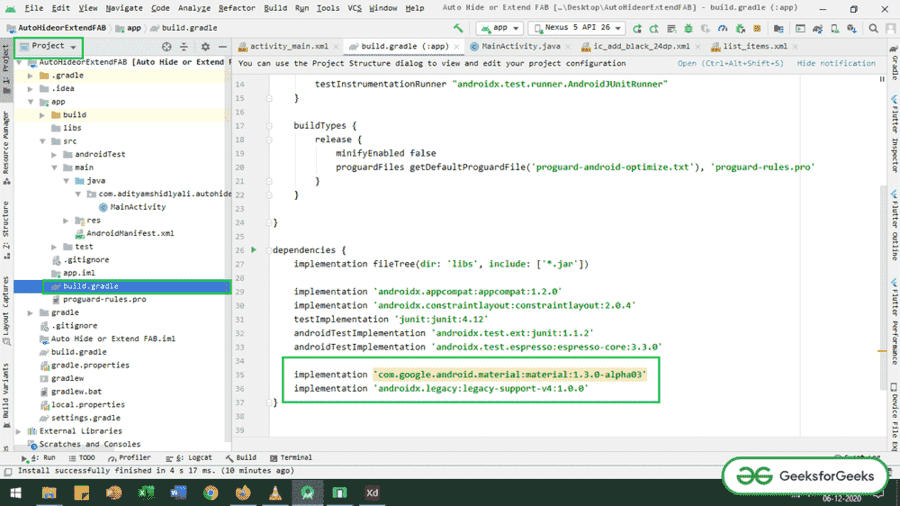
  • First, locate the app-level gradle file in app -> build.gradle.
  • Invoke the following dependencies to the app level gradle file.
  • Make sure the system is connected to the network so that it downloads the required dependencies.

for Material design Extended Floating Action Button:

implementation 'com.google.android.material:material:1.3.0-alpha03'

for NestedScrollView:

implementation 'androidx.legacy:legacy-support-v4:1.0.0'

  • Refer to the following image if unable to locate the app-level gradle file and invoke the dependencies.
👁 1


Step 3: Create sample list_item.xml inside the layout folder

  • Implement the sample list_item with only one TextView.
  • Invoke the following code inside the list_item.xml file under the layout folder.

Step 4: Working with the activity_main.xml file

  • The root layout should be Coordinator layout in activity_main.xml.
  • Further, the NestedScrollViews and one Extended Floating Action button are implemented in the layout with gravity "bottom|end".
  • Inside the NestedScrollView layout sample layout is included for the demonstration purpose.
  • Invoke the following code inside the activity_main.xml file to implement the required UI.

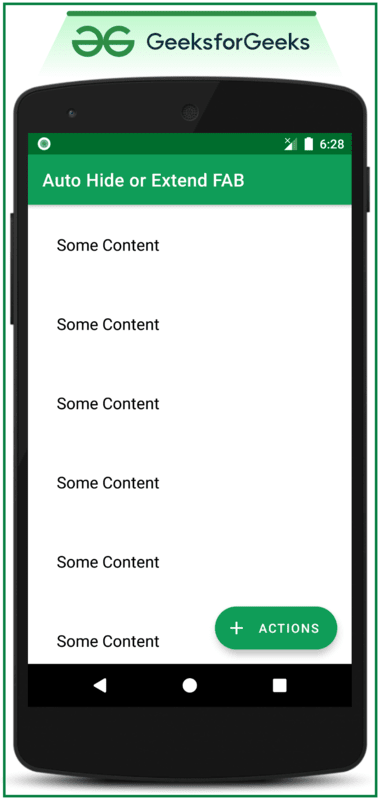
Output UI:

👁 3

Step 5: Now working with the MainActivity.java file

  • There is a need to handle the NestedScrollView with OnScrollChangeListener. If the NestedScrollView is scrolled down then the ExtendedFloatingAction button should be shrink state, and when scrolled up the FAB should be in an extended state.
  • Invoke the following code to implement the functionality. Comments are added for better understanding.

Output: Run on Emulator

Now replacing the Extended Floating Action button with normal Floating Action Button

  • Replace the Extended Floating Action Button with Normal Floating Action Button to hide the FAB when scrolled down, and it FAB should appear when scrolled up.
  • Invoke the following code inside the activity_main.xml file. Here the Extended FAB is replaced with the normal FAB.

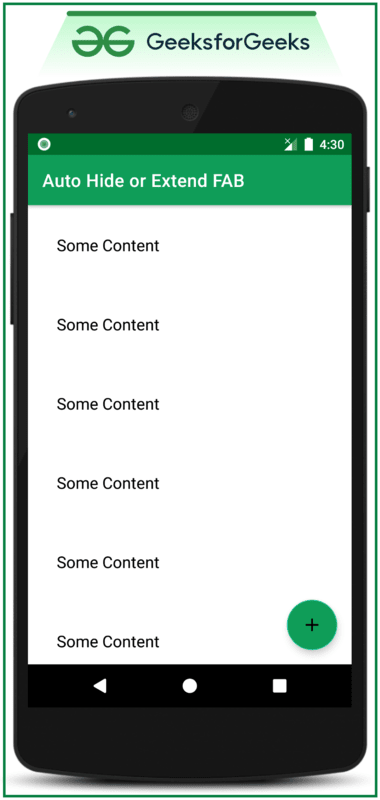
Output UI:

👁 2


  • Now Invoke the following code inside the MainActivity.java file to show or hide the Floating Action Button.

Output: Run on Emulator

Comment

Explore