|
VOOZH | about |
|
VOOZH | about |
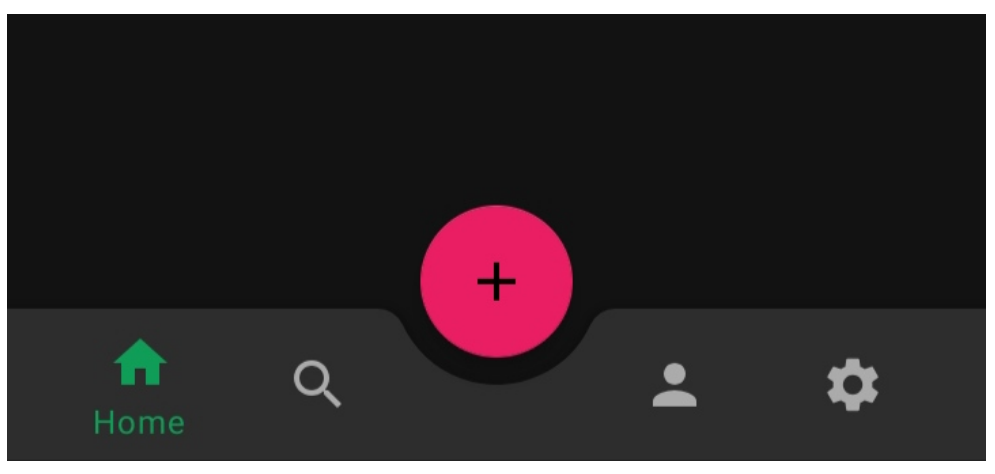
The floating action button is a bit different button from the ordinary buttons. Floating action buttons are implemented in the app’s UI for primary actions (promoted actions) for the users and the actions under the floating action button are prioritized by the developer. For example the actions like adding an item to the existing list. Bottom navigation bars allow movement between primary destinations in an app. Some popular examples include Instagram, WhatsApp, etc. In this article, we will learn how to add a Floating Action Button (FAB) in the middle of the Bottom Navigation bar in android. A sample image is given below to get an idea about what we are going to do in this article. Note that we are going to implement this project using the Kotlin language.
👁 How to Add a Floating Action Button to Bottom Navigation Bar in Android?Step 1: Create a New Project
To create a new project in Android Studio please refer to How to Create/Start a New Project in Android Studio. Note that select Kotlin as the programming language.
Step 2: Add dependency to the build.gradle file
Inside build.gradle(app) add Material Design Dependency.
implementation 'com.google.android.material:material:1.3.0-alpha03'
After adding the material design dependency click on the Sync now.
👁 ImageStep 3: Change the theme of the app to Material Components
Below is the code for the styles.xml file.
Step 4: Import Icons from Vector assets
Go to res > drawable (right-click) > new -> vector assets and import five icons from there namely Home, Search, Person, Add, Settings. And your project structure should look like this after this step.
👁 ImageStep 5: Create menu items that have to be shown in the bottom navigation view
Go to res (right-click) > New > Android resource file and in the pop-up menu choose the resource type to menu and name the file bottom_nav_menu. It should look like this.
👁 ImageInside bottom_nav_menu.xml add items that we want to show in the bottom app bar. Below is the code for the bottom_nav_menu.xml file.
Step 6: Working with the AndroidManifest.xml file
Change the theme inside the AndroidManifest.xml file. Below is the code for the AndroidManifest.xml file.
Step 7: Working with the activity_main.xml file
Below is the code for the activity_main.xml file.
Step 8: Working with the MainActivity.kt file
Go to the MainActivity.kt file and refer to the following code. Below is the code for the MainActivity.kt file.