|
VOOZH | about |
|
VOOZH | about |
In the previous article, we have seen using Language detector in Android using Firebase ML kit. In this article, we will take a look at the implementation of Language translator in Android using Firebase ML Kit in Android.
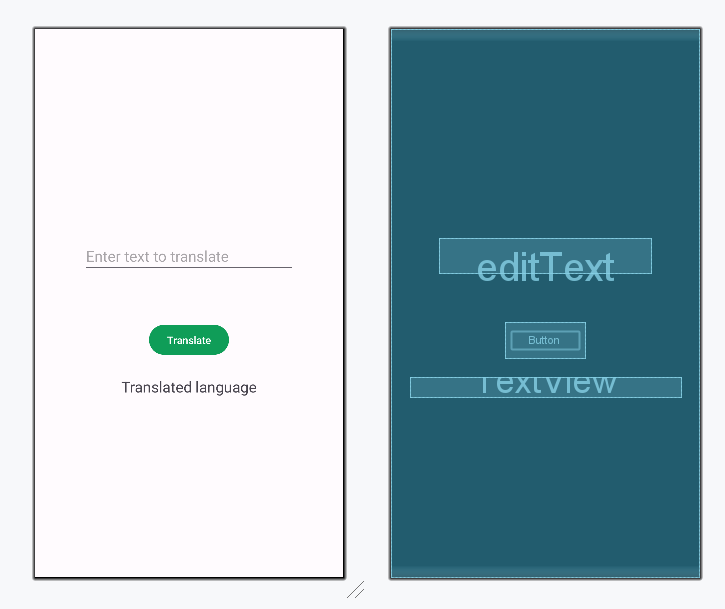
We will be building a simple application in which we will be showing an EditText field and we will add any input to that TextField. Along with that, we will be displaying a Button to translate that text to the Hindi language. After clicking that button our text will be translated which we can get to see in the text view.
To create a new project in Android Studio please refer to How to Create/Start a New Project in Android Studio.
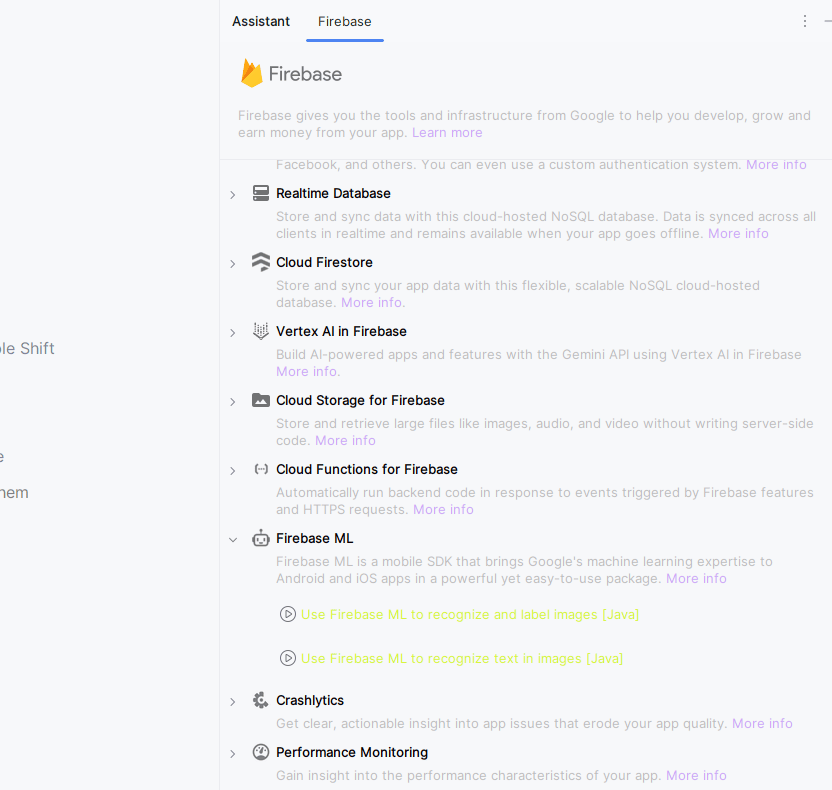
After creating a new project in Android Studio connect your app to Firebase. For connecting your app to firebase. Navigate to Tools on the top bar. After that click on Firebase. A new window will open on the right side. Inside that window click on Firebase ML and then click on Use Firebase ML kit in Android. You can see the option in the below screenshot.
After clicking on this option you will get to see the below screen. On this screen click on Connect to Firebase option to connect your app to Firebase. Click on Connect option to connect your app to Firebase and add the below dependency to your build.gradle.kts file.
Navigate to the Gradle Scripts > build.gradle.kts(Module:app) and add the below dependency in the dependencies section.
dependencies {
 ...
 implementation ("com.google.firebase:firebase-core:21.1.1")
 implementation ("com.google.firebase:firebase-ml-natural-language:22.0.1")
 implementation ("com.google.firebase:firebase-ml-natural-language-translate-model:20.0.9")
}
Navigate to the app > manifests > AndroidManifest.xml file and add the below code to it. Comments are added in the code to get to know in more detail.
<uses-permission android:name="android.permission.INTERNET"/>Navigate to the app > res > layout > activity_main.xml and add the below code to that file. Below is the code for the activity_main.xml file.
activity_main.xml:
Design UI:
Go to the MainActivity file and refer to the following code. Below is the code for the MainActivity file. Comments are added inside the code to understand the code in more detail.
MainActivity File:
Important: When you are using the app for the first time. It will take some time because it will download the modal in the background.
Note: We are not adding multiple language support in this application because for each language we have to download the language conversion model so it will make the app heavier and language translation will take so much time.
Refer to the following github repo for the entire code: Language_Translator_Android_Firebase