|
VOOZH | about |
|
VOOZH | about |
In Android development, Menus are an important part of the user interface, providing users with easy access to common functionalities and ensuring a smooth and consistent experience throughout the application. In Android, we have three types of Menus available to define a set of options and actions in our android applications. The Menus in android applications are the following:
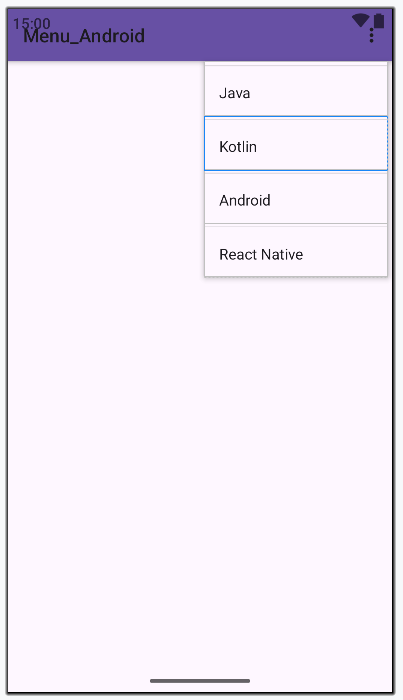
In this article, we are going to discuss the Popup Menu. A PopupMenu displays a Menuin a popup window anchored to a View. The popup will be shown below the anchored View if there is room(space) otherwise above the View. If any IME(Input Method Editor) is visible the popup will not overlap it until the View(to which the popup is anchored) is touched. Touching outside the popup window will dismiss it.
In this example, we are going to make a popup menu anchored to a Button and on click, the popup menu will appear, and on a touch of the popup menu item, a Toast message will be shown. A sample video is given below to get an idea about what we are going to do in this article.
Note that we are going to implement this project using both Java and Koltin language.
To create a new project in Android Studio please refer to How to Create/Start a New Project in Android Studio.
The code for that has been given in both Java and Kotlin Programming Language for Android.
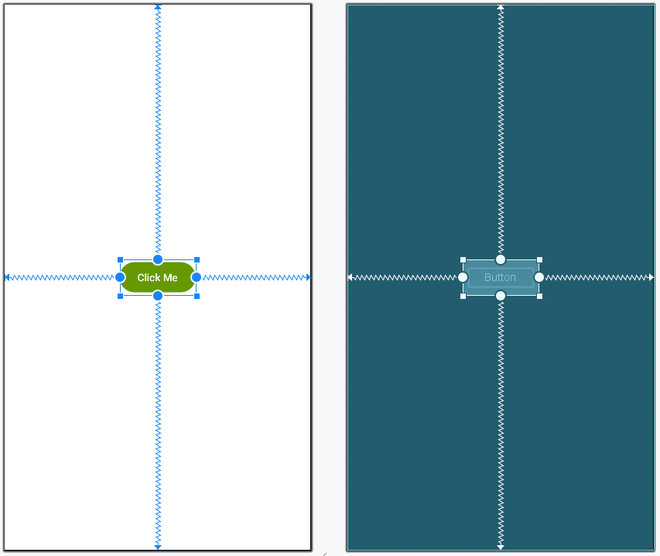
Next, go to the activity_main.xml file, which represents the UI of the project. Below is the code for the activity_main.xml file.
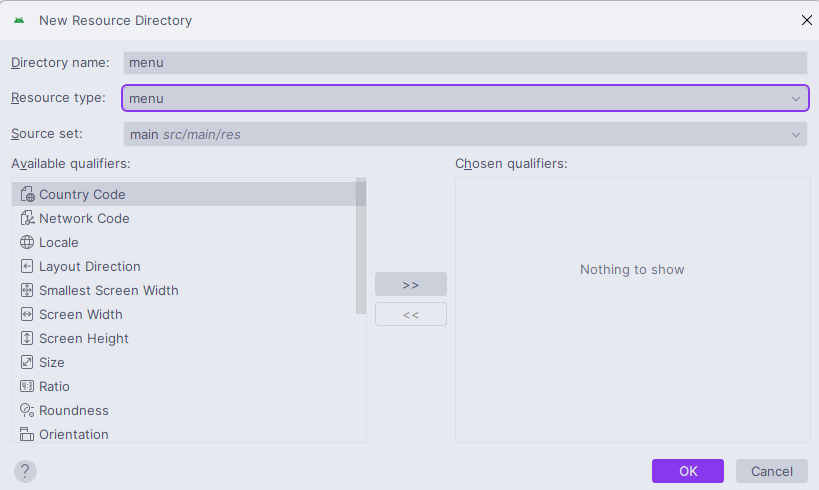
First, we will create a menu director which will contain the menu file. Go to app > res > right-click > New > Android Resource Directory and give the Directory name and Resource type as menu.
Now, we will create a popup_menu file inside that menu resource directory. Go to app > res > menu > right-click > New > Menu Resource File and create a menu resource file and name it popup_menu. In the popup_menu file, we will add menu items. Below is the code snippet for the popup_menu.xml file.
In the MainActivity file, we will get the reference of the Button and initialize it. Add onClick behavior to the button and inflate the popup menu to it. Below is the code snippet for the MainActivity file.
MainActivity File: