|
VOOZH | about |
|
VOOZH | about |
This article is about sending a text SMS over the phone using the SMSManager class in an Android application. For this, a basic knowledge ofthe fundamentals of android app development, creating a new project, running an android app, Views, and handling of click event buttons is required.
SMSManager class manages operations like sending text messages, data messages, and multimedia messages (MMS). For sending a text message method sendTextMessage() is used likewise for multimedia message sendMultimediaMessage() and for data message, the sendDataMessage() method is used.
The details of each function are:
Function | Description |
|---|---|
| sendTextMessage() | sendTextMessage(String destinationAddress, String scAddress, String text, PendingIntent sentIntent, PendingIntent deliveryIntent, long messageId) |
| sendDataMessage() | sendDataMessage(String destinationAddress, String scAddress, short destinationPort, byte[] data, PendingIntent sentIntent, PendingIntent deliveryIntent) |
| sendMultimediaMessage() | sendMultimediaMessage(Context context, Uri contentUri, String locationUrl, Bundle configOverrides, PendingIntent sentIntent |
Below is an example of a basic application that sends a text message.
Step 1: Create a new Android Application.
Step 2: Go to AndroidManifest.xml.
app->Manifest->AndroidManifest.xml
Step 3: In AndroidManifest.xml add the permission to send SMS. It will permit an android application to send SMS.
<uses-permission android:name=" android.permission.SEND_SMS " />
Step 4: Open activity_main.xml from the following address and add the below code. Here, in a Linear Layout, two edittext for taking phone number and a text message and a button for sending the message is added.
app->res->layout->activitymain.xml
Below is the code implementation of the activity_main.xml file:
app->java->com.example.gfg->MainActivity
Create objects for views used i.e., editTexts and button. In the onCreate method find all the views using the findViewById() method.
Viewtype object =(ViewType)findViewById(R.id.IdOfView);
Since the Send button is for sending the message so onClickListener is added with the button. Now create two string variables and store the value of editText phone number and message into them using method getText() (before assigning convert them to a string using toString() method). Now in try block create an instance of SMSManager class and get the SMSManager associated with the default subscription id. Now call method sendTextMessage() to send message.
SmsManager smsManager=SmsManager.getDefault();
smsManager.sendTextMessage(number,null,msg,null,null);
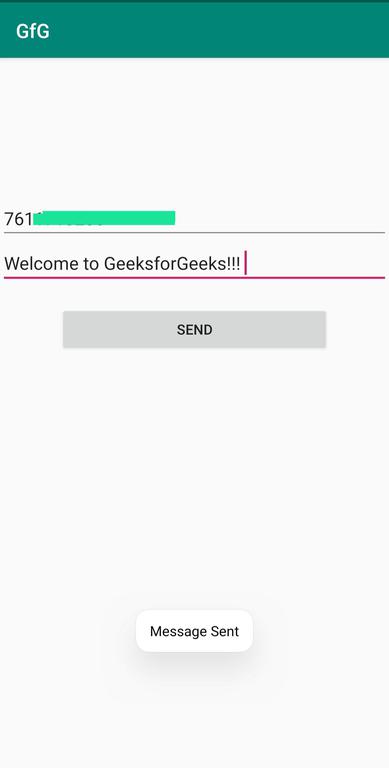
Then display the toast message as "Message sent " and close the try block. At last in catch block display a toast message because the message was not sent if the compiler executes this block of the code.
Note: For running application in Android device enable the SMS permission for the app.
Goto permissions->SMS->YourApp and enable permission.
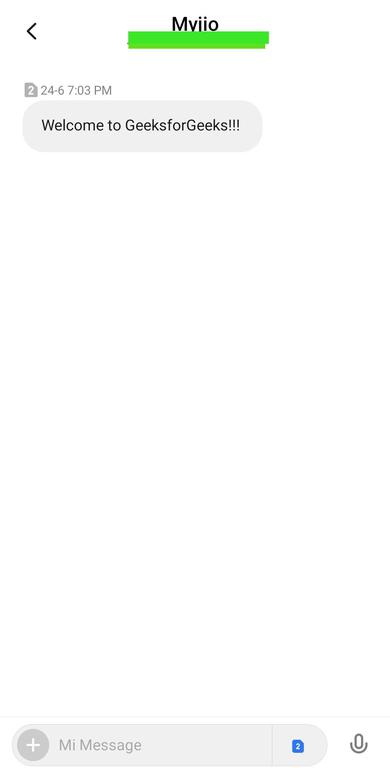
Output:
Sending the message
Sent message in the messaging app