|
VOOZH | about |
|
VOOZH | about |
The various other Material design components need special attributes to get implemented. But in this article, the Material design Snackbar is implemented and it doesn't need the special attributes to get implemented in the application. Have a look at the following image to differentiate between the normal snack bar and the Material design Snackbar in Android. What makes the Material design Snackbar is its design and ease of implementation and customization.
Note that we are going to implement this project using both Java and Kotlin language.
To create a new project in Android Studio please refer to How to Create/Start a New Project in Android Studio.
Include google material design components dependency in the build.gradle.ktsfile. After adding the dependencies don't forget to click on the "Sync Now" button present at the top right corner.
implementation ("com.google.android.material:material:1.12.0")Note: While syncing your project you need to be connected to the network and make sure that you are adding the dependency to the Module-levelGradlefile as shown below.
Go to app > src > main > res > values > themes.xml and change the base application theme. The MaterialComponents contains various action bar theme styles, one may invoke any of the MaterialComponents action bar theme styles, except AppCompat styles.
Let's discuss why we need to change the action bar theme to the material theme of the app to invoke all the Google MDC widgets in our android application:
themes.xml:
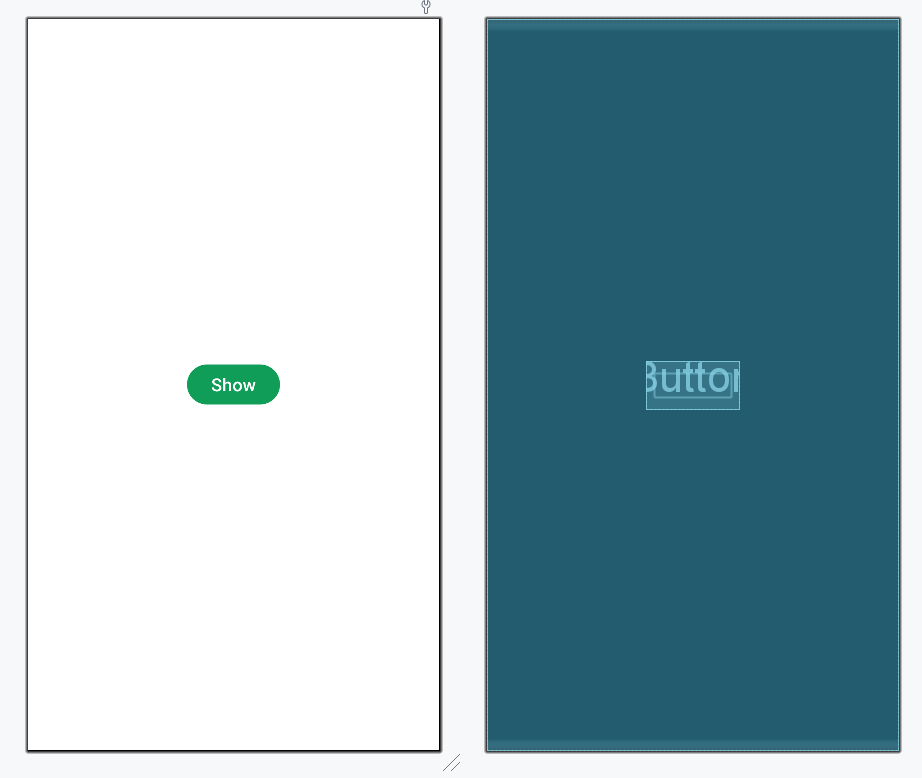
In the activity_main.xml file, we will just a button to trigger the snackbar.
activity_main.xml:
This file will contain the code for the entire setup of the snackbar.
MainActivity file:
Invoke the following code inside the MainActivity file above the snackbar.show() code. In this case, the Snackbar dismiss duration is set for 3 seconds.
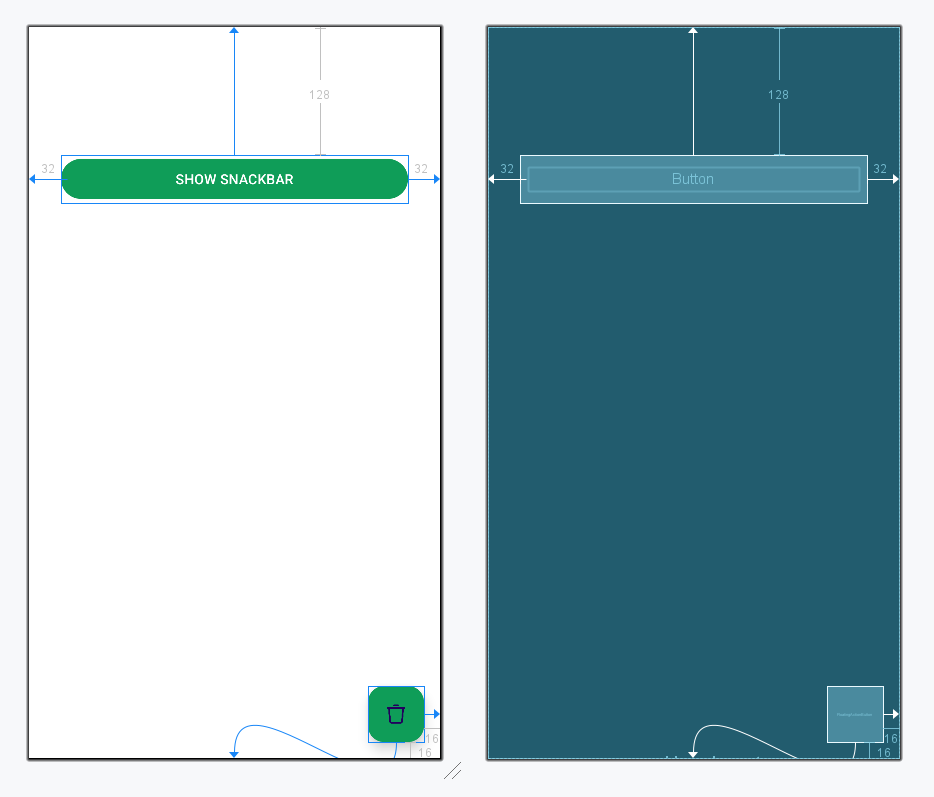
This method shows the setting of the anchorPoint to the Floating action button. Invoke the following code inside the activity_main.xml.
activity_main.xml:
Now working with the MainActivity file to handle the overlapping of the Snackbar.
To know more, refer to How To Avoid Snackbar Overlap Floating Action Button in Android?
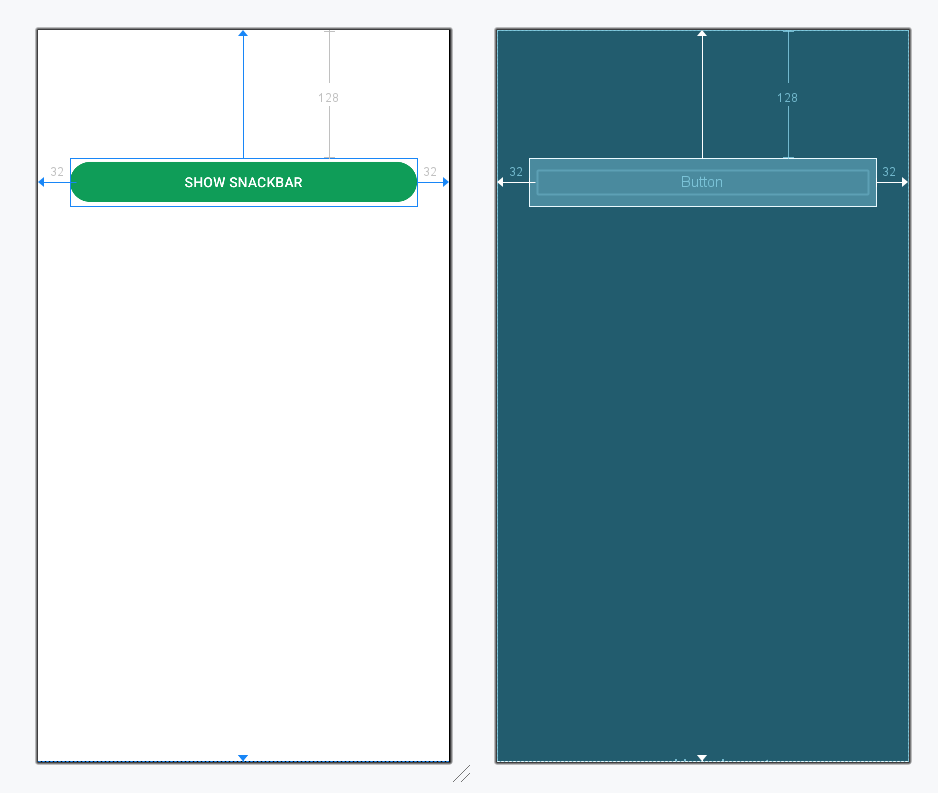
Invoke the following code inside the activity_main.xml
activity_main.xml:
Now working with the MainActivity file and while building the Snackbar make sure to pass the coordinator layout for the "make" function.
MainActivity file: