|
VOOZH | about |
|
VOOZH | about |
In this article, we'll see how we can add password show and hide features in React Native applications.
In mobile apps, users often need to toggle password visibility for better user experience and accuracy. React Native simplifies this with the `SecureTextEntry` prop in the `TextInput` component, enabling easy implementation of password show/hide functionality.
SecureTextEntry prop of the TextInput component to toggle the visibility of the password.SecureTextEntry prop based on the state variable to show or hide the password.Adding password visibility toggles improves user experience in login forms. This can be achieved using TextInput with secure text entry features.
Install Expo CLI globally by running this command:
npm install -g expo-cliStep 2: Create React Native Application With Expo CLI
Create a new react native project with Expo CLI by using this command:
expo init showhide-passowrdStep 3:Navigate to project directory by using this command:
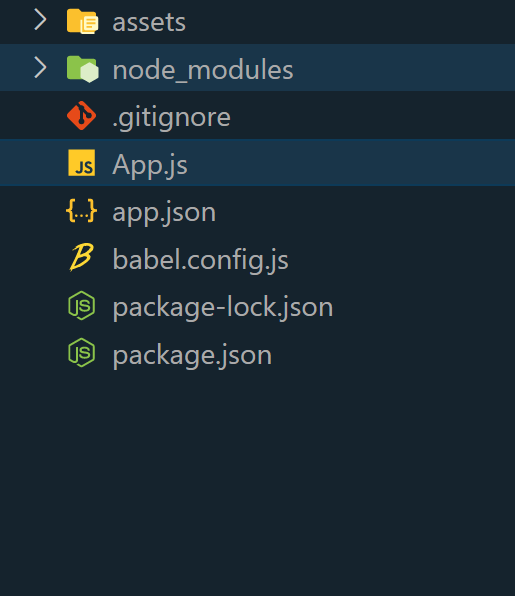
cd showhide-password👁 React-Native-Project-Structure.png
Step 4: Install required dependency
npm install @expo/vector-iconsExample:
Steps to run: To run the react native application, open the Terminal/CMD and enter the following command:
npx expo startTo run on Android:
npx react-native run-androidTo run on ios:
npx react-native run-iosOutput: